Draw with AI
eventcatalog@5.7.1Describe what you want to design, and the EventCatalog Assistant draws it on the canvas while you watch. It uses the resources in your catalog and the AI model you configure.
Before you start
Draw with AI uses the EventCatalog Assistant, so your catalog needs:
- Studio turned on. It's on in
eventcatalog dev; see Run Studio in production for a deployed catalog. - A model configured in
eventcatalog.chat.js. See Configure the assistant.
Draw with AI only appears on a canvas when the assistant is available.
Draw on a canvas
- Open a canvas, or start one from a diagram with Open in Studio.
- Choose Draw with AI at the top right. The assistant opens beside the canvas.
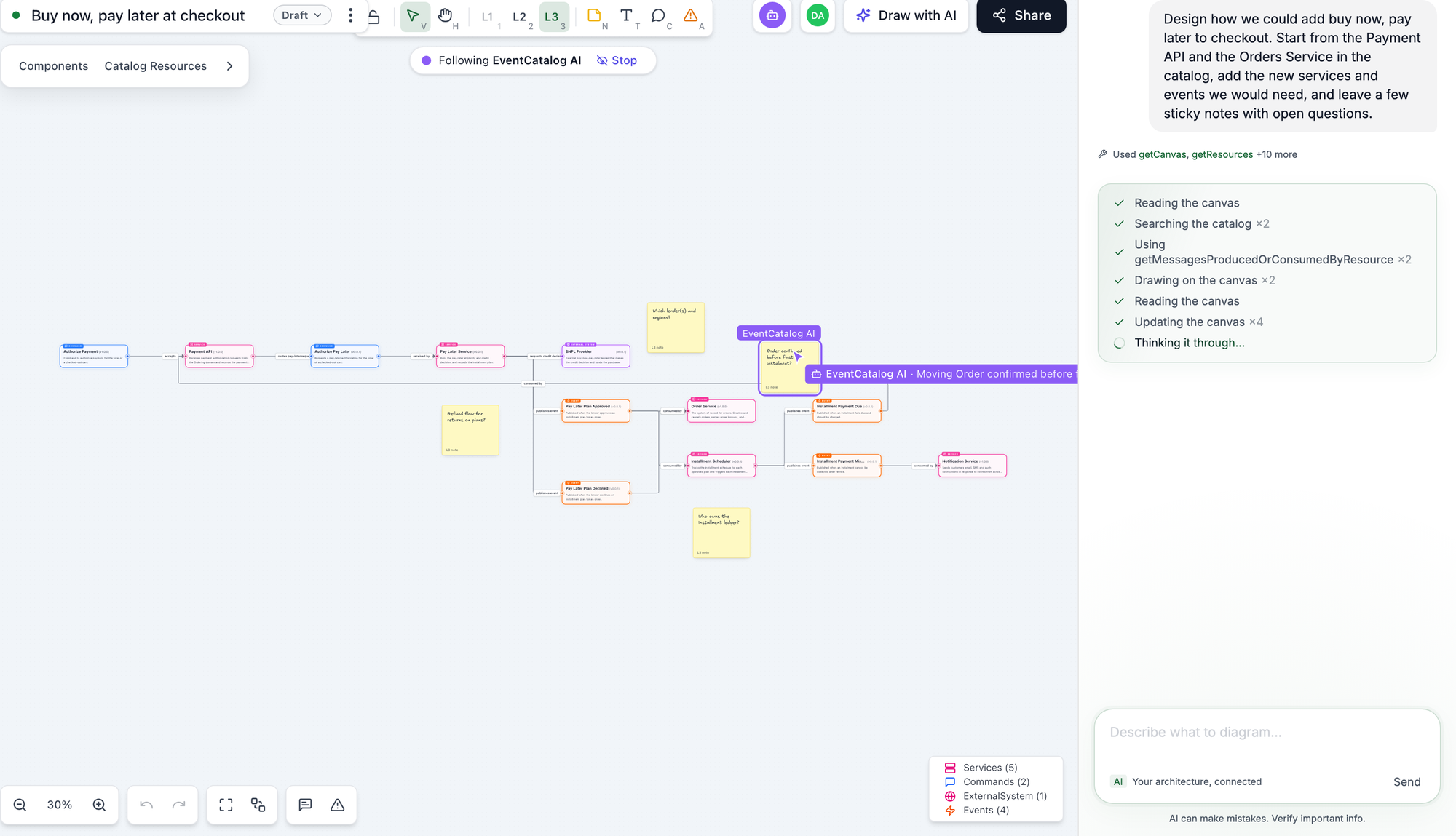
- Describe what you want, for example "Map out the Payments domain", and press Enter.
The assistant reads the canvas, finds what you asked about in your catalog, and draws it with its own pointer, one step at a time. The chat shows what it's doing ("Reading the canvas", "Drawing on the canvas"). Your view follows it while it works; choose Stop on the "Following" banner to look around on your own.
When it's finished, the assistant tidies the layout and keeps sticky notes and text beside what they're about.
Everyone on the canvas sees the assistant's pointer and changes, as they see each other's.
What it draws
- Resources from your catalog, with their real names, versions and summaries. A domain or system arrives with everything in it. A service or message can arrive with what it sends, receives and connects to.
- New components for what isn't in your catalog yet, such as a proposed service or event. They start at version
0.0.1. - Sticky notes and text, when you ask for them or ask for a review: assumptions, open questions, a title or headings.
Connections between catalog resources come from your catalog, not from the model. If the assistant can't find something you asked for, it says so in its reply.
Like everything on a canvas, what the assistant draws is a design. It never changes your catalog files.
Ask it to review a design
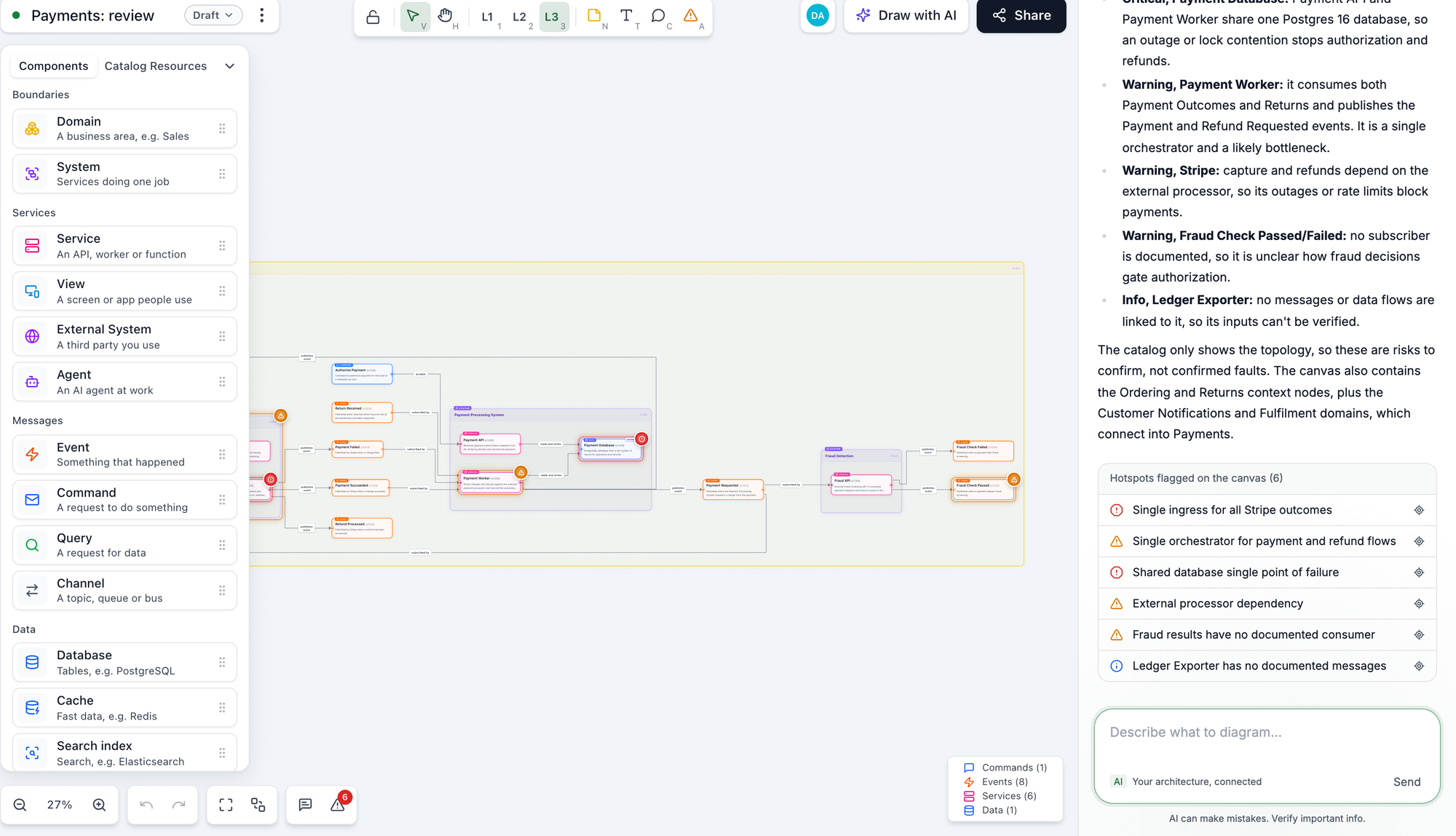
Ask the assistant to review a canvas, and it flags what it finds with hotspots on the nodes they're about, marked Critical, Warning or Info. It can add sticky notes with suggestions too.
The hotspots it flags are listed under its reply. Click one to go to it on the canvas. Each one says Flagged by EventCatalog AI, so your team can tell them apart from their own.
Ask how something works
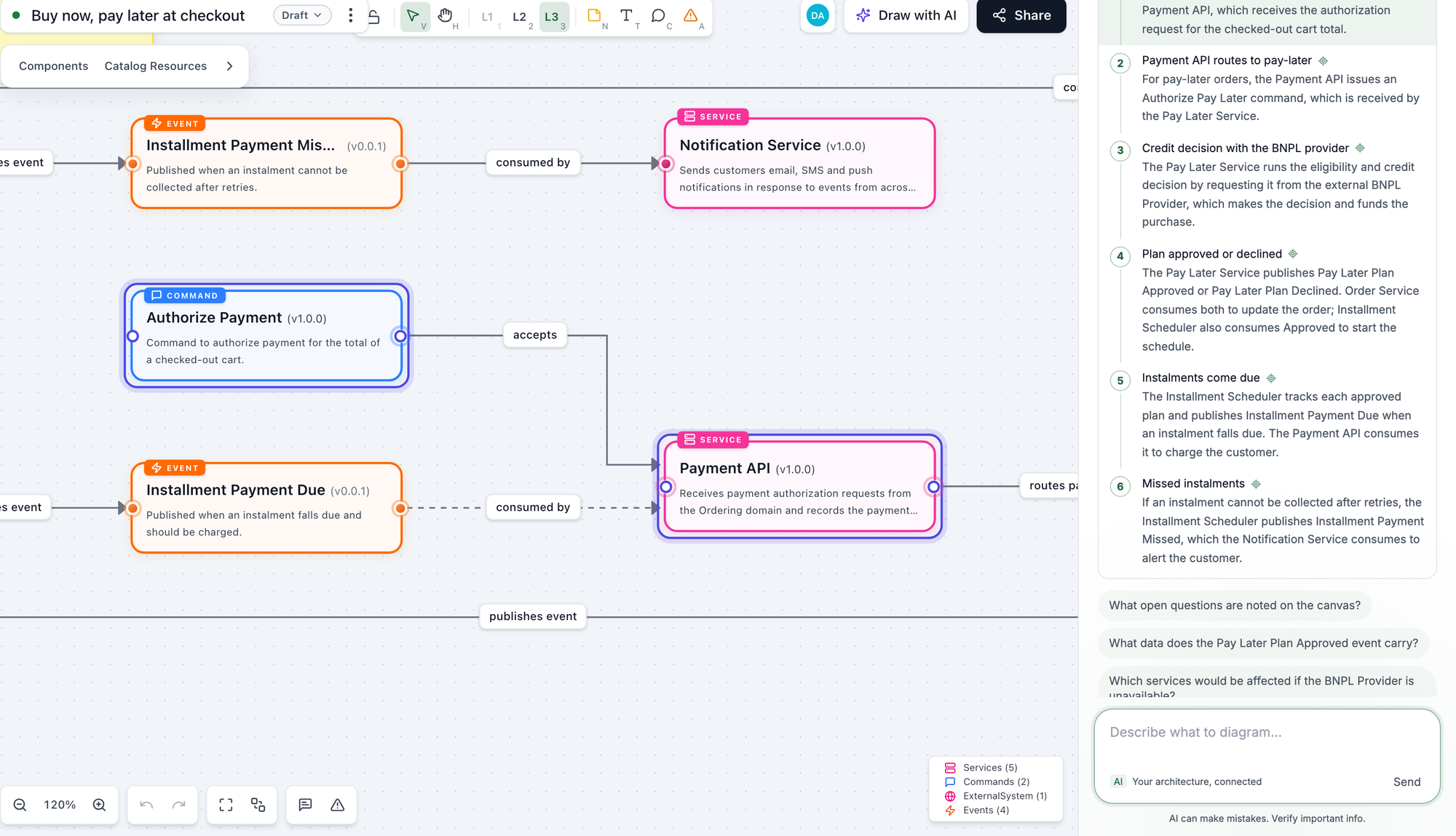
Ask "walk me through how checkout works", and the assistant answers with a walkthrough: one step at a time, each with what happens and the nodes involved. Hover or click a step to go to its nodes on the canvas.
When the assistant mentions something on the canvas, its name in the reply links to it. Hover or click it to go there.
Things to ask
When you open the assistant on a canvas, it suggests a few things to ask:
- Create a new diagram: the assistant asks what to draw.
- Review my architecture, highlight any issues: it flags problems with hotspots and adds sticky notes with its review.
- How could we improve this architecture?: it flags risks and suggests improvements on sticky notes.
Other things to try:
- "Map out the Payments domain"
- "Design how we could add buy now, pay later to checkout"
- "Add a fraud check between checkout and the Payment API"
- "How could we split the Order Service?"
- "Walk me through what happens when a payment fails"
After each answer, the assistant suggests follow-up questions based on what's on the canvas.
Choosing a model
The assistant uses the model in eventcatalog.chat.js, so you choose the provider, the model and who pays for it. Your catalog talks to your provider directly.
A small, fast model is enough for most drawing. To trade speed for more careful answers, pass your provider's options with configuration.providerOptions, for example Anthropic's effort.
The assistant and other agents
The assistant draws with the same canvas actions as agents that connect through MCP, such as Claude, Cursor or VS Code, and appears on the canvas the same way. It also has a few tools of its own: flagging hotspots, taking you to nodes, and walkthroughs. See the reference.