Studio reference
Everything about Studio and its canvases in one place.
Configuration
studio
| Option | Type | Default | Description |
|---|---|---|---|
studio.enabled | boolean | false | Turns Studio on in production. Studio is on in eventcatalog dev unless this is false. false turns it off everywhere. |
storage
| Option | Type | Default | Description |
|---|---|---|---|
storage.type | 'memory' | 'sqlite' | 'memory' | 'memory' keeps canvases while the server runs. 'sqlite' keeps them in a database file. |
storage.path | string | '.eventcatalog/eventcatalog.db' | The SQLite database file, relative to your catalog. |
SQLite storage needs Node.js 22.13 or later.
Related options
| Option | Why it matters for Studio |
|---|---|
output | Must be 'server' for Studio in production, and for agents to connect through the MCP server. |
auth.enabled | With authentication on, only signed-in people can open canvases. |
mcp.enabled | Agents connect through the MCP server. Setting it to false stops agents connecting. |
security.allowedDomains | Needed when a proxy serves your catalog over HTTPS. |
When Studio is on
| Command | studio.enabled not set | true | false |
|---|---|---|---|
eventcatalog dev | On | On | Off |
eventcatalog start (output: 'server') | Off | On | Off |
Static build (output: 'static') | Off | Off | Off |
Example
export default {
  output: 'server',
  studio: {
    enabled: true,
  },
  storage: {
    type: 'sqlite',
    path: '/data/eventcatalog.db',
  },
};
See the full configuration reference for every EventCatalog option.
Canvas
Toolbar
| Button | Shortcut | What it does |
|---|---|---|
| Lock | Locks the canvas, so it can be looked at but not changed | |
| Select | V | Select and move nodes |
| Hand | H | Drag to move around |
| L1 / L2 / L3 | 1 2 3 | Change the level |
| Sticky note | N | Click where the note goes |
| Text | T | Click anywhere and type |
| Comment | C | Click a node, or a spot, to comment |
| Hotspot | A | Click a node, or a spot, to flag a risk |
The controls at the bottom left zoom, undo and redo, fit the view (⇧ 1), reorder the diagram, and list comments and hotspots.
Levels
| Level | Shows |
|---|---|
| L1 | Domains, systems and their relationships |
| L2 | Services and data stores |
| L3 | Everything, including messages and channels |
L1 is unavailable until the canvas has a domain or system.
Canvas menu
The three dots next to the canvas title.
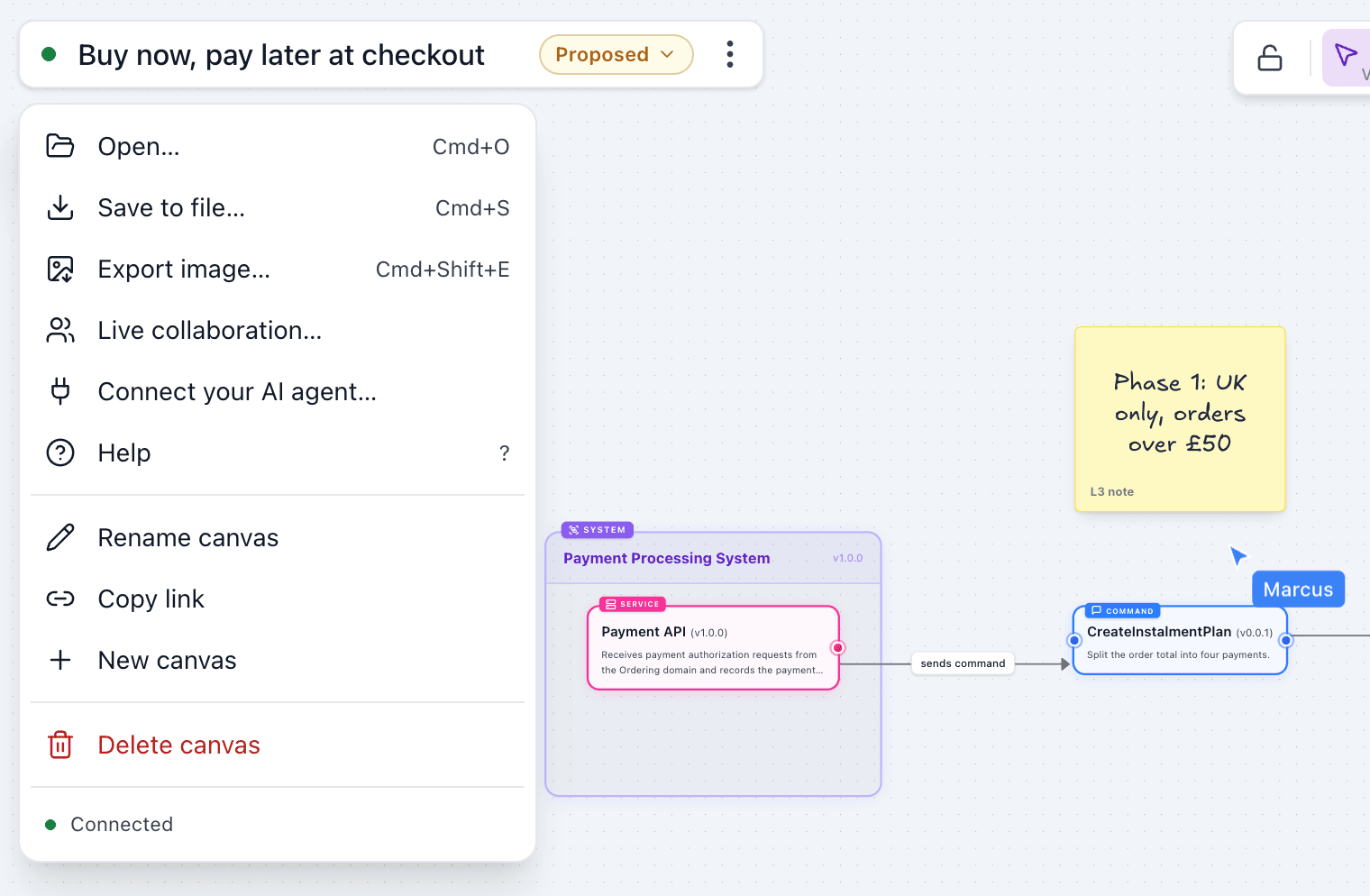
| Item | Shortcut |
|---|---|
| Open… | ⌘ O |
| Save to file… | ⌘ S |
| Export image… | ⌘ ⇧ E |
| Live collaboration… | |
| Connect your AI agent… | |
| Help | ? |
| Rename canvas | |
| Copy link | |
| New canvas | |
| Delete canvas |
The bottom of the menu shows the connection status, for example Connected.
Right-click menus
| On | Items |
|---|---|
| A node | Add comment, Add hotspot, Add a note, Edit details, Copy, Duplicate, Delete |
| The canvas | Add comment, Add hotspot, Add a sticky note, Paste here, Reorder diagram |
Statuses
| Status | Meaning |
|---|---|
| Draft | Being worked on. Every canvas starts as a draft. |
| Proposed | Ready for review |
| Accepted | The agreed design |
| Rejected | Decided against, kept for the record |
- Each status change can have a note. The status menu shows the history, with who changed it, when and the note.
- Changing the nodes or connections on an accepted or rejected canvas makes it a draft again.
Hotspots
| Field | Values |
|---|---|
| Severity | Critical (red), Warning (amber) or Info (blue) |
| Title | Up to 120 characters, for example "Single point of failure" |
| Description | Optional. Why it matters, and what to do about it |
- A hotspot is on a node, and moves with it, or on a spot on the canvas.
- The Hotspots list shows the most severe first.
- At L1 and L2, hotspots inside a domain or system are shown on that domain or system.
Studio page
The Studio page lists canvases with their status, contents, open comments, who created them, and when they were last updated. Filter by name or status. Each canvas's menu has Make a copy and Delete.
Limits
| Limit | Value |
|---|---|
| Canvas title | 200 characters |
| Your name | 60 characters |
.eventcatalog file | 2 MB |
Components and connections
Components
New components start at version 0.0.1.
| Group | Component | Description |
|---|---|---|
| Boundaries | Domain | A business area, e.g. Sales |
| System | Services doing one job | |
| Services | Service | An API, worker or function |
| View | A screen or app people use | |
| External System | A third party you use | |
| Agent | An AI agent at work | |
| Messages | Event | Something that happened |
| Command | A request to do something | |
| Query | A request for data | |
| Channel | A topic, queue or bus | |
| Data | Database | Tables, e.g. PostgreSQL |
| Cache | Fast data, e.g. Redis | |
| Search index | Search, e.g. Elasticsearch | |
| Object store | Files and blobs, e.g. S3 | |
| Entity | Part of the domain model | |
| People | Actor | Someone who uses it |
| Team | Who owns what |
Sticky notes and text are added from the toolbar.
Catalog resources
You can add these resources from your catalog: domains, systems, services, events, commands, queries, channels and data stores. They are added at their latest version, with their name, version and summary from your catalog.
Connection labels
When you connect two nodes, Studio labels the connection with EventCatalog's wording:
| From | To | Label |
|---|---|---|
| Service, agent, actor, external system or view | Event | publishes event |
| Service, agent, actor, external system or view | Command | invokes |
| Service, agent, actor, external system or view | Query | requests |
| Event | Anything but a message or channel | subscribed by |
| Command or query | Anything but a message or channel | accepts |
| Message | Message | triggers |
| Message | Channel | sent to |
| Channel | Anything | routes to |
| Anything else | Channel | publishes to |
| Anything | Data store | writes to |
| Data store | Anything | read by |
| Actor | Anything | uses |
| Anything | View | serves |
| Anything | External system | calls |
| Anything | Actor | notifies |
| Team | Anything | owns |
| Entity | Entity | references |
| Message | Entity | carries |
| Anything else | Entity | manages |
Agents can set their own labels through the MCP tools.
MCP tools
When Studio is on, the EventCatalog MCP server has these tools for canvases. Unlike the other MCP tools, they change your canvases.
| Tool | What it does |
|---|---|
openCanvas | Shows a canvas in the chat, in clients that support MCP Apps |
listCanvases | Lists canvases and who is on each one |
createCanvas | Creates a canvas and returns its link |
getCanvas | Reads a canvas: its nodes, connections, comments and who is on it |
addToCanvas | Adds catalog resources or new components, and connects them |
updateCanvasNode | Renames, describes, versions or moves a node |
connectCanvasNodes | Connects nodes |
removeFromCanvas | Removes nodes or connections |
layoutCanvas | Lays out the whole canvas |
setCanvasStatus | Sets the status to draft, proposed, accepted or rejected, with a note |
commentOnCanvas | Starts a comment thread on a node or a spot |
replyToCanvasComment | Replies to a thread |
resolveCanvasComment | Resolves or reopens a thread |
Every tool takes an optional agentName, the name people on the canvas see. It defaults to the name of the client, for example Claude, Claude Code, ChatGPT or Cursor.
How agents appear
- An agent has its own pointer and name on the canvas.
- Its changes appear one step at a time, with what it is doing, for example "Connecting InstalmentPlanApproved to Notification Service".
- A banner shows when an agent is working. Choose Follow to move your view with it.
Browser tools (WebMCP)
When WebMCP is turned on in the Connect your AI agent dialog, the open canvas offers agents in the browser these tools: get_canvas, search_catalog, add_to_canvas, update_node, connect_nodes, remove_from_canvas, layout_canvas, set_canvas_status, add_comment, reply_to_comment, resolve_comment and show_nodes.
Keyboard shortcuts
Press ? on a canvas to see these shortcuts. On Windows and Linux, use Ctrl instead of ⌘.
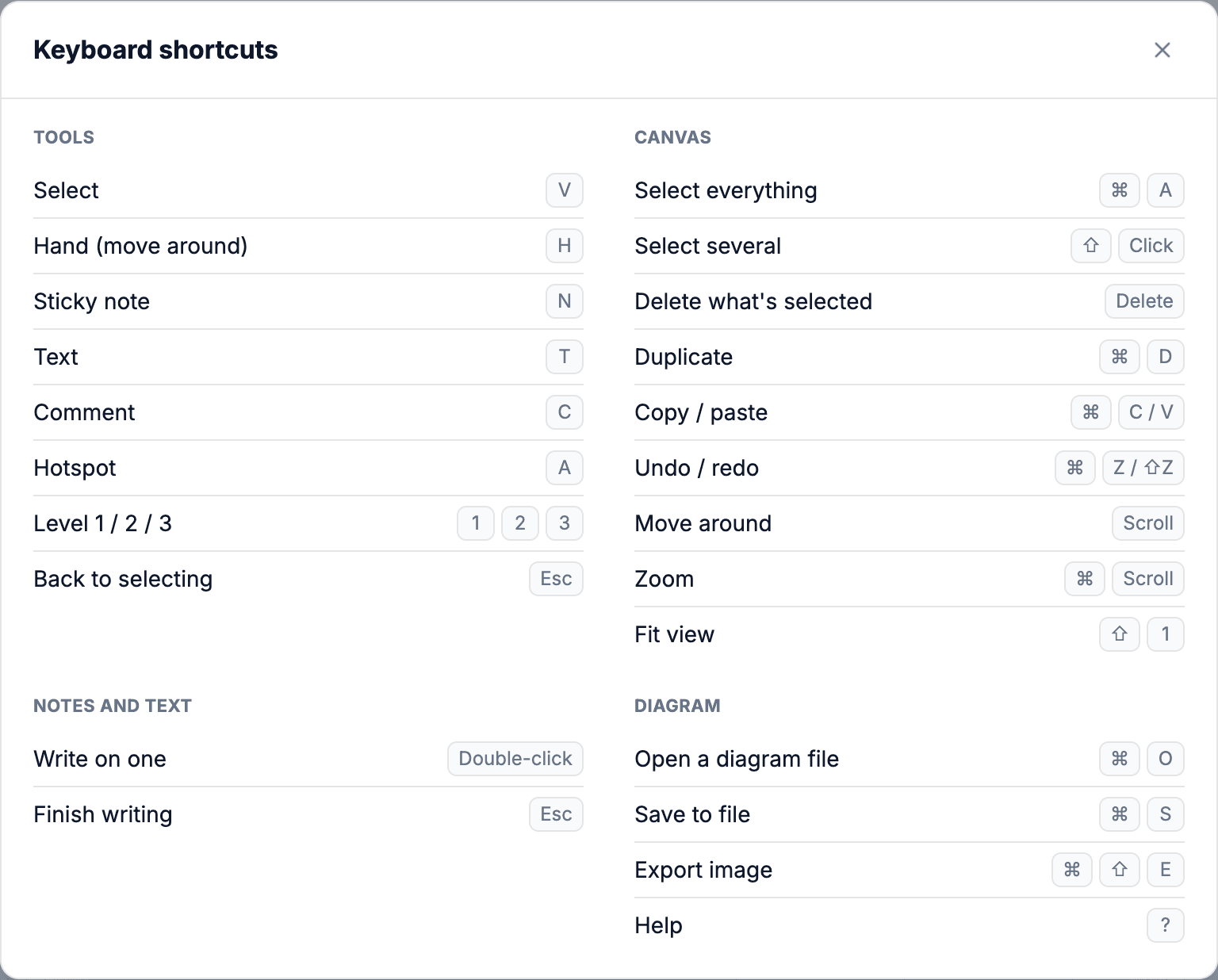
Tools
| Action | Shortcut |
|---|---|
| Select | V |
| Hand (move around) | H |
| Sticky note | N |
| Text | T |
| Comment | C |
| Hotspot | A |
| Level 1 / 2 / 3 | 1 2 3 |
| Back to selecting | Esc |
Canvas
| Action | Shortcut |
|---|---|
| Select everything | ⌘ A |
| Select several | ⇧ + click |
| Delete what's selected | Delete |
| Duplicate | ⌘ D |
| Copy / paste | ⌘ C / ⌘ V |
| Undo / redo | ⌘ Z / ⌘ ⇧ Z |
| Move around | Scroll |
| Zoom | ⌘ + scroll |
| Fit view | ⇧ 1 |
Notes and text
| Action | Shortcut |
|---|---|
| Write on one | Double-click |
| Finish writing | Esc |
Files
| Action | Shortcut |
|---|---|
| Open a file | ⌘ O |
| Save to file | ⌘ S |
| Export image | ⌘ ⇧ E |
| Help | ? |