Connect your agent to a canvas
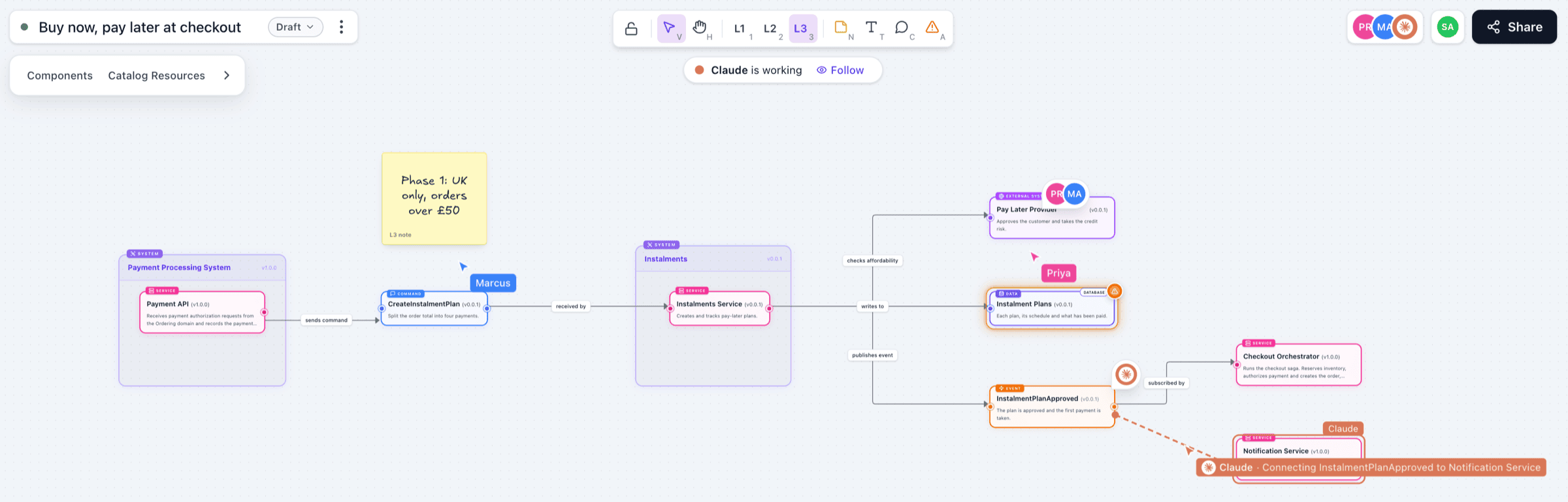
AI agents can join a canvas and work on it with you, live. An agent can add resources from your catalog, sketch new components, connect them, tidy the layout, comment and change the status.
Agents join like a person does. Each one has its own pointer and name, and you see what it's doing ("Connecting InstalmentPlanApproved to Notification Service") as it works. Choose Follow on the "is working" banner to move your view with it.
Before you start
Agents connect through the EventCatalog MCP server, so your catalog must run with output: 'server', including when you use eventcatalog dev.
The MCP server is at /docs/mcp, for example https://your-eventcatalog.com/docs/mcp.
Connect with one prompt
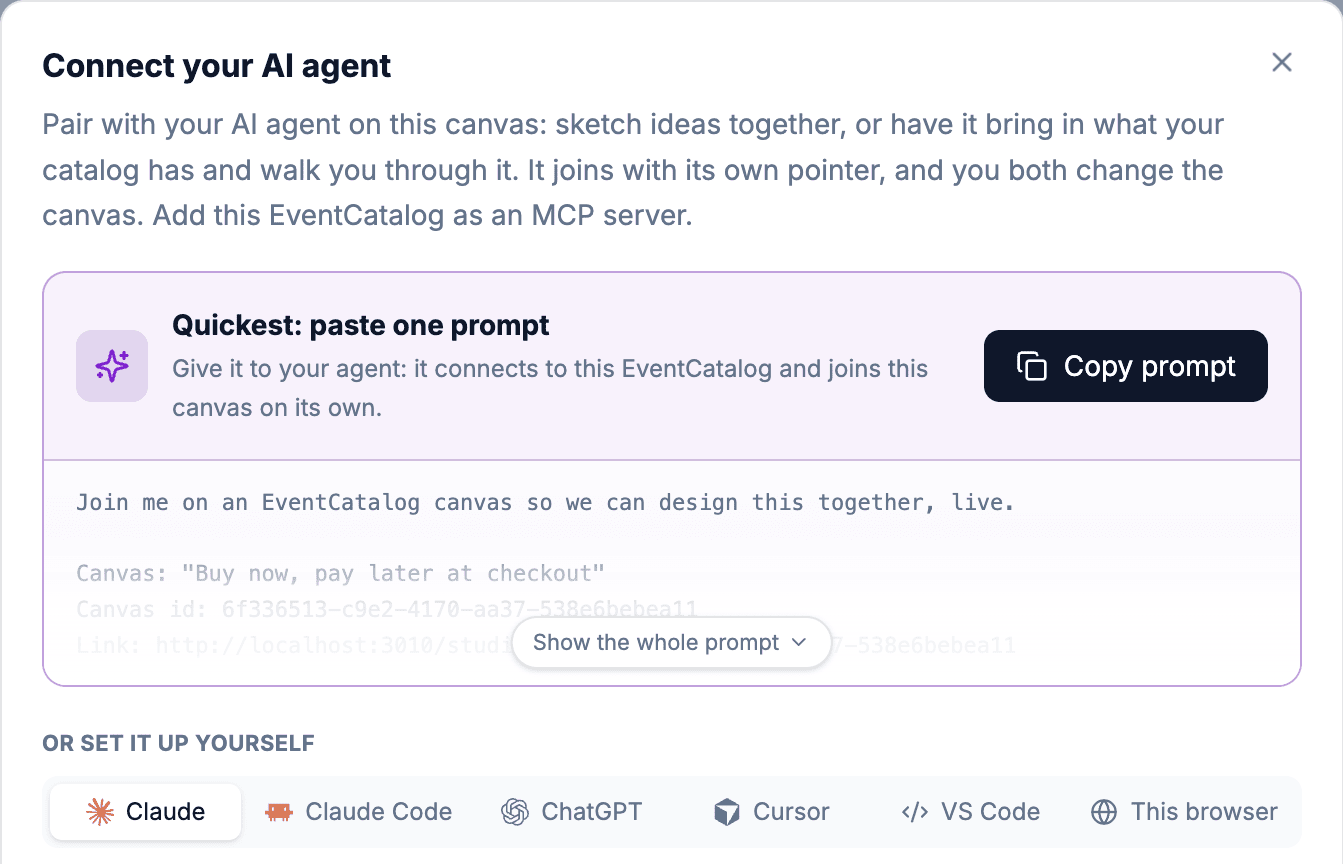
- On the canvas, choose Share, then Connect agent. Or open the canvas menu and choose Connect your AI agent.
- Choose Copy prompt.
- Paste the prompt into your agent.
The prompt tells the agent which canvas to join and how to connect to your catalog.
Set up your client
Claude
- Open Settings → Connectors and choose Add custom connector.
- Name it
EventCatalogand paste your MCP server URL. - In a chat, turn the connector on and ask Claude to join your canvas.
Claude Code
claude mcp add --transport http eventcatalog https://your-eventcatalog.com/docs/mcp
Then ask Claude Code to join your canvas.
ChatGPT
- Open Settings → Apps & Connectors, turn on developer mode and create a connector with your MCP server URL.
- In a chat, add the connector and ask ChatGPT to join your canvas.
Cursor
{
  "mcpServers": {
    "eventcatalog": { "url": "https://your-eventcatalog.com/docs/mcp" }
  }
}
VS Code
Use Copilot's agent mode.
{
  "servers": {
    "eventcatalog": { "type": "http", "url": "https://your-eventcatalog.com/docs/mcp" }
  }
}
Agents in your browser
In the Connect your AI agent dialog, choose This browser, then Turn on. Agents in your browser, such as the MCP-B extension, can then use the open canvas through WebMCP.
The canvas inside your chat
In clients that support MCP Apps, such as Claude and ChatGPT, the agent can open the canvas inside the conversation. You and the agent work on it there, and everyone with the canvas open in EventCatalog sees the same changes.
Things to ask
Design ideas together
- "Add a payments service that listens to OrderPlaced"
- "How could we split the orders service?"
- "Add retries and a dead letter queue to this"
Understand how it works
- "Put everything the Orders domain owns on the canvas"
- "Walk me through what happens when a payment fails"
- "Which services consume this event?"
Agents work from your catalog, so the services and messages they add are the ones your teams document. They talk to you in the chat, and only comment on the canvas when you ask them to, for example to review it.
See the reference for the MCP tools agents use.