Navigating the Board
As your board grows, the Miro app provides several ways to navigate between resources and keep things organized.
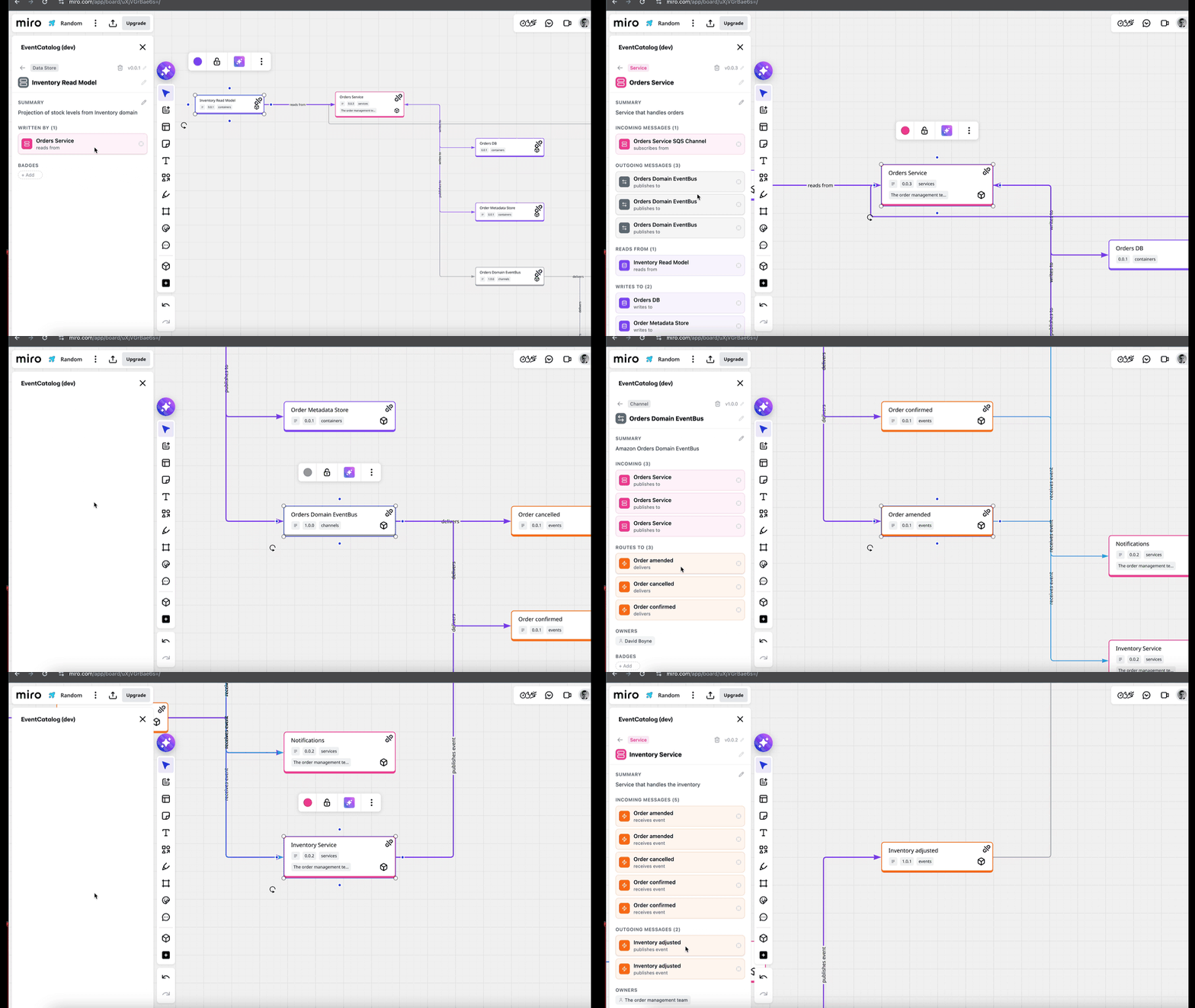 Editing a resource from the detail panel
Clicking connected resources
When viewing a resource's detail panel, you'll see its incoming and outgoing connections listed. Click any connected resource to:
- Zoom to that resource on the board
- Select it so its detail panel opens automatically
This lets you follow the flow of messages through your architecture — click from a service to an event it publishes, then to the service that consumes it, and so on.
Finding resources from the list
When browsing the resource list in the sidebar, hover over any resource to reveal a crosshair icon. Click it to zoom directly to that resource on the board — helpful when you have a large board and need to locate a specific resource.
Auto-layout
If your board gets cluttered, click the Auto-layout button in the dashboard header. This automatically arranges all resources using a left-to-right directed graph layout, organizing connected resources into a clean flow.
Auto-layout is useful after:
- Adding several resources with dependencies at once
- Manually moving things around and wanting to reset the layout
- Getting a clear picture of the overall architecture flow
Auto-opening the panel
When you select a node on the board, the app panel automatically opens and shows that resource's details — even if the panel was previously closed. This means you can close the panel to get more board space, then click any node to bring it back with the right context.
Connection highlighting
When you select a resource on the board, all of its connections are highlighted in purple. This makes it easy to see at a glance which resources are connected to the selected one, even on a busy board.