Adding Resources to the Board
Once you've imported your catalog, you can start adding resources to your Miro board.
The dashboard
After importing, you'll see the dashboard — a grid showing all your resource categories with the number of resources in each:
- Services — microservices and systems
- Events — domain events
- Commands — command messages
- Queries — query messages
- Channels — message brokers and routing
- Data Stores — databases and storage
Click any category to drill into its resource list.
Dragging resources onto the board
There are two ways to add resources to the board:
From the category list
- Click a category (e.g. Services) to see all resources in that category
- Grab a resource by its drag handle and drag it onto the Miro board
- The resource appears on the board as a card with its name, version, and metadata
Each resource in the list shows its name, version, summary, and owners. You can search to filter resources down.
From the dashboard
You can also drag a category card directly from the dashboard onto the board. This creates a new blank resource of that type on the board — useful for quickly sketching out resources that don't exist yet.
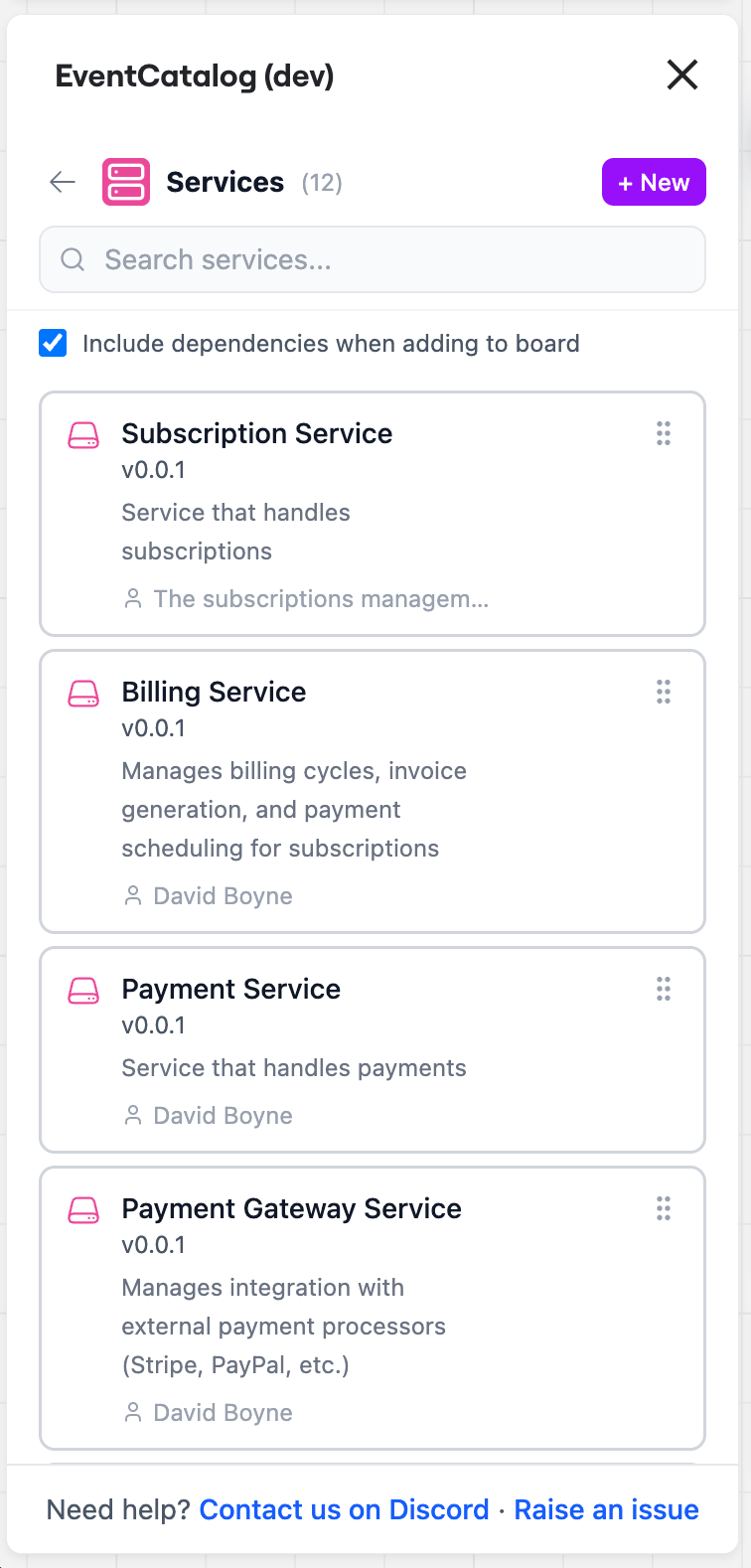 Imported Services for Miro
Display modes
The app supports two display modes for how resources appear on the board. You can switch between them from the Display Mode toggle on the dashboard:
App Card
 Style - App Card
The default mode. Resources appear as Miro App Cards with:
- Resource name as the title
- Summary as the description
- Version, category, owners, and badges as fields
- Color-coded by resource type
- Status indicator (Active, Draft, or Deprecated)
Post-it
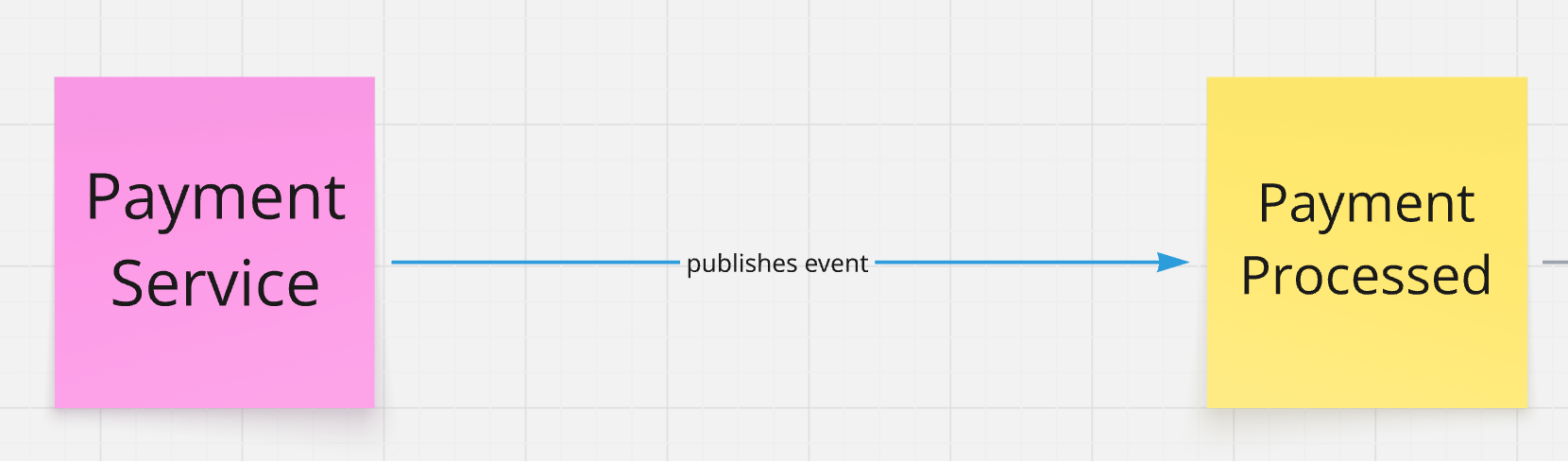 Style - Post-it
Resources appear as colored Miro sticky notes with the resource name. This is a simpler, more compact view — useful when you want a high-level overview without the detail.
When you switch display modes, all existing resources on the board are automatically converted to the new format. Connections between resources are preserved.
Auto-layout
If your board gets messy, click the Auto-layout button in the dashboard header. This automatically arranges all resources on the board using a left-to-right directed graph layout, organizing connected resources into a clean flow.
Finding resources on the board
 Style - Post-it
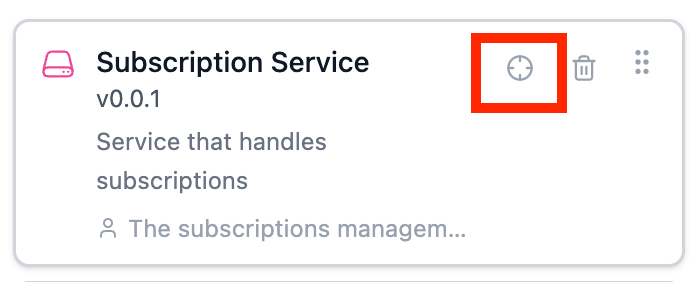
When browsing the resource list, hover over any resource to reveal a crosshair icon. Click it to zoom to that resource on the board — helpful when you have a large board and need to find a specific resource.