Editing Resources
Select any node on the Miro board to view and edit its details in the app panel.
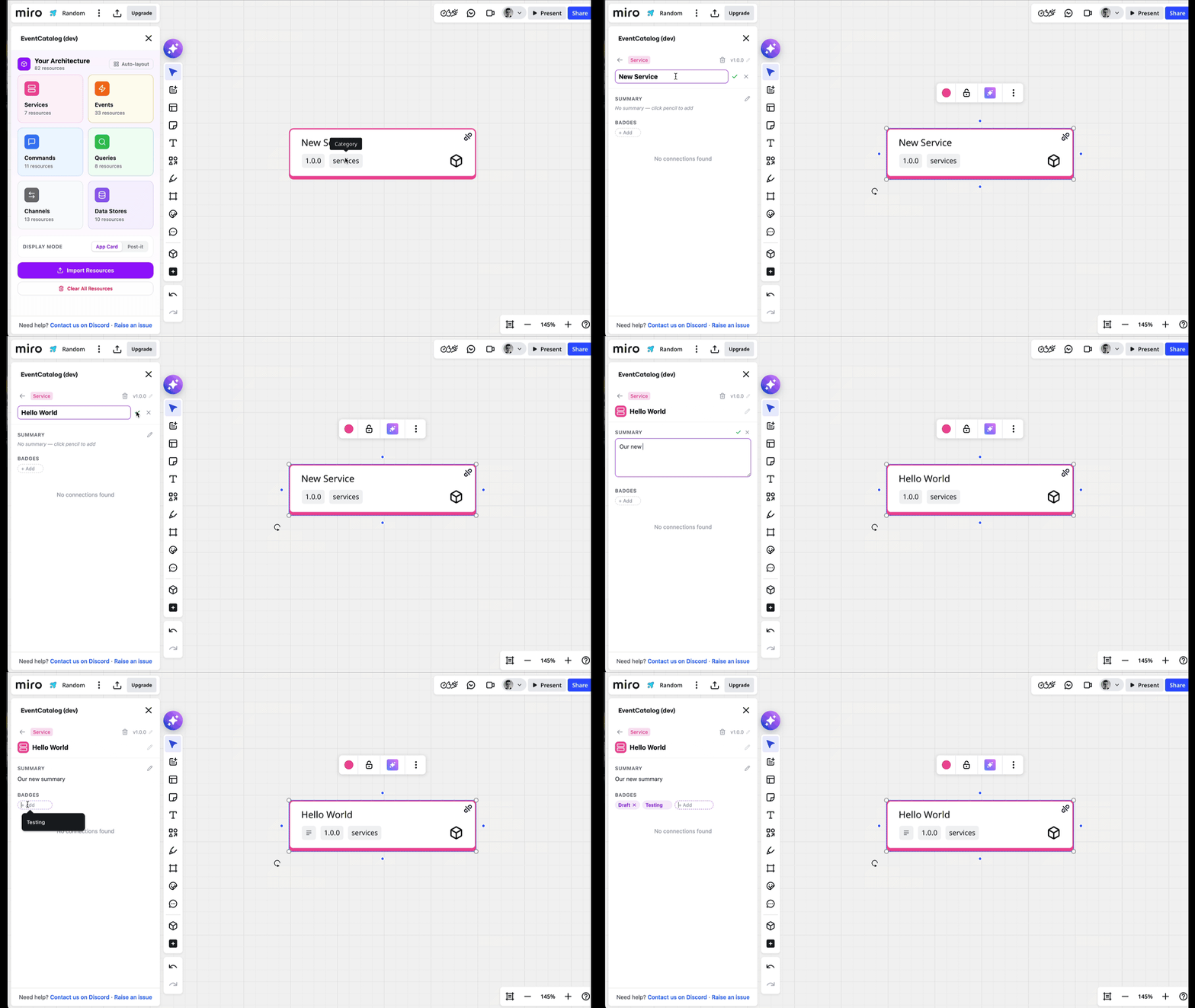 Editing a resource from the detail panel
Viewing resource details
Click any resource node on the board to open its detail view in the panel. You'll see:
- Category — the resource type (Service, Event, Command, etc.)
- Name — the resource name
- Version — the current version
- Summary — a short description
- Badges — tags and labels on the resource
- Connected resources — incoming and outgoing connections grouped by type
For services, connections are organized into:
- Incoming Messages — events, commands, and queries the service receives
- Outgoing Messages — events, commands, and queries the service sends
- Data Stores — databases the service reads from or writes to
For messages, connections show Producers and Consumers.
Editing fields
Click the pencil icon next to any editable field to modify it:
- Name — updates the resource name on both the board and in the catalog
- Version — updates the version number
- Summary — updates the description
Press Enter to save your changes or Escape to cancel. Changes are synced to the Miro board item automatically.
Adding and removing badges
You can add badges to any resource by typing in the badge input field and pressing Enter. Click the x on a badge to remove it. Badges are useful for tagging resources with metadata like team ownership, status, or technology.
Deleting resources
Click the trash icon in the top-right of the detail panel to delete the resource. This removes it from both the catalog and the Miro board. You can also select a node on the board and press Backspace or Delete to remove it.