Service resources page
Added in
eventcatalog@5.0.0Every service gets a Resources page that lists everything connected to it in one table. Open it from Quick Reference > Resources in the service's sidebar, or go to /docs/services/{service-id}/{version}/resources.
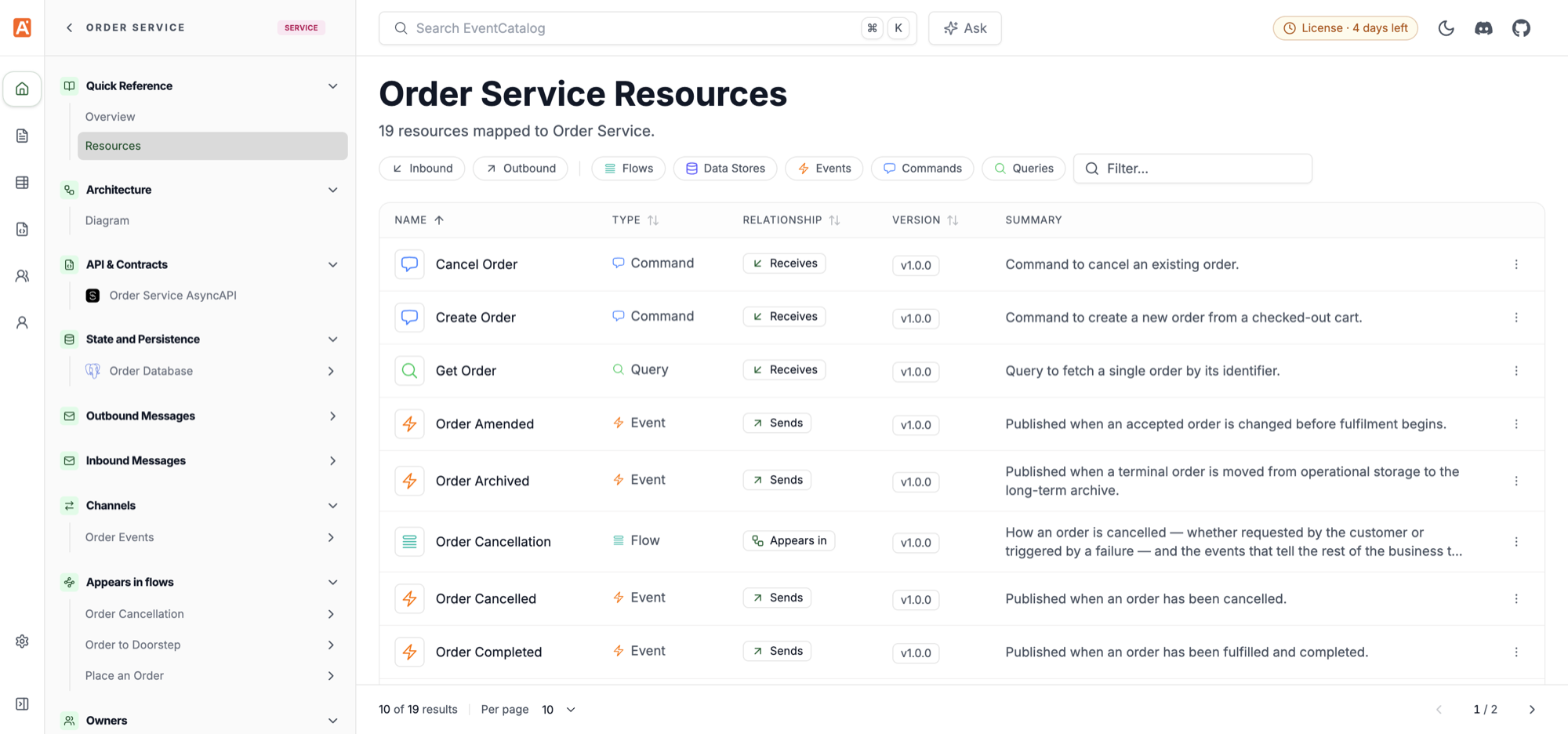
What the page lists
The page lists the resources your service is connected to:
| Resource | Where it comes from | Relationship |
|---|---|---|
| Events, commands and queries | The service's sends and receives (add messages to services) | Sends, Receives or Sends & receives |
| Entities | The service's entities (add entities to services) | Owns |
| Data stores | The service's writesTo and readsFrom (add data stores to services) | Writes to, Reads from or Reads & writes |
| Flows | The service's flows, and any flow with a step that points at the service (flows) | Appears in |
| Decision records | Any ADR whose appliesTo includes the service (add ADRs to resources) | Governed by |
The Resources link only shows in the sidebar when the service has at least one resource to list.
Find resources in the table
- Relationship column: shows how each resource connects to the service, for example Sends, Receives or Reads from.
- Inbound and Outbound filters: show only what comes into the service (messages it receives, data stores it reads from) or what goes out of it (messages it sends, data stores it writes to). These filters only show when the service has connections in both directions.
- Type filters: show only one or more kinds of resource, such as Events, Commands or Data Stores. A filter only shows for types the service has.
- Filter...: search by name, id or summary.
- Sorting: click the Name, Type, Relationship or Version column header to sort.
- Pagination: page through long lists and choose how many rows to show with Per page.
Row actions
Each row has a ... menu with quick actions:
- View documentation: open the resource's docs page.
- View in visualiser: open the resource in the visualiser (when the visualiser is enabled and the resource has a diagram).
- View schema: open the message's schema page (when the message has a schema).
- Add to favorites: pin the resource to your favorites. Choose Remove from favorites to unpin it.