Create a domain
In this step, you will create your first domain.
A domain groups related parts of your architecture around a business area. In this tutorial, you will create an E-Commerce domain and add the two services you already created.
In this chapter...
Here are the topics we'll cover
- Create an E-Commerce domain folder.
- Add OrderService and InventoryService to the domain.
- Refresh EventCatalog and check the domain page.
Create the domain folder
From the root of your catalog, create a folder for the domain:
mkdir -p domains/E-Commerce
Add the domain page
Create a new file at domains/E-Commerce/index.mdx:
---
id: E-Commerce
name: E-Commerce
version: 0.0.1
summary: |
  Contains the services that support customer ordering.
owners:
  - commerce-platform-team
services:
  - id: OrderService
    version: 0.0.1
  - id: InventoryService
    version: 0.0.1
---

## Overview

The E-Commerce domain contains the services that support checkout, orders, and inventory coordination.
The important frontmatter fields are:
idis the stable identifier for the domain.nameis the label people see in EventCatalog.versionis the version of the domain page.summaryexplains what belongs in the domain.ownerslinks the domain to the team that owns it.serviceslists the services that belong to the domain.
You can learn more in the create a domain guide, add services to domains guide, and domain owners guide.
The version field inside each service reference is optional. If you leave it out, EventCatalog will use the latest version of that service.
Check the domain in EventCatalog
Refresh EventCatalog in your browser and open the E-Commerce domain.
You should see the domain page and the two services listed in the sidebar at http://localhost:3000/docs/domains/E-Commerce/0.0.1
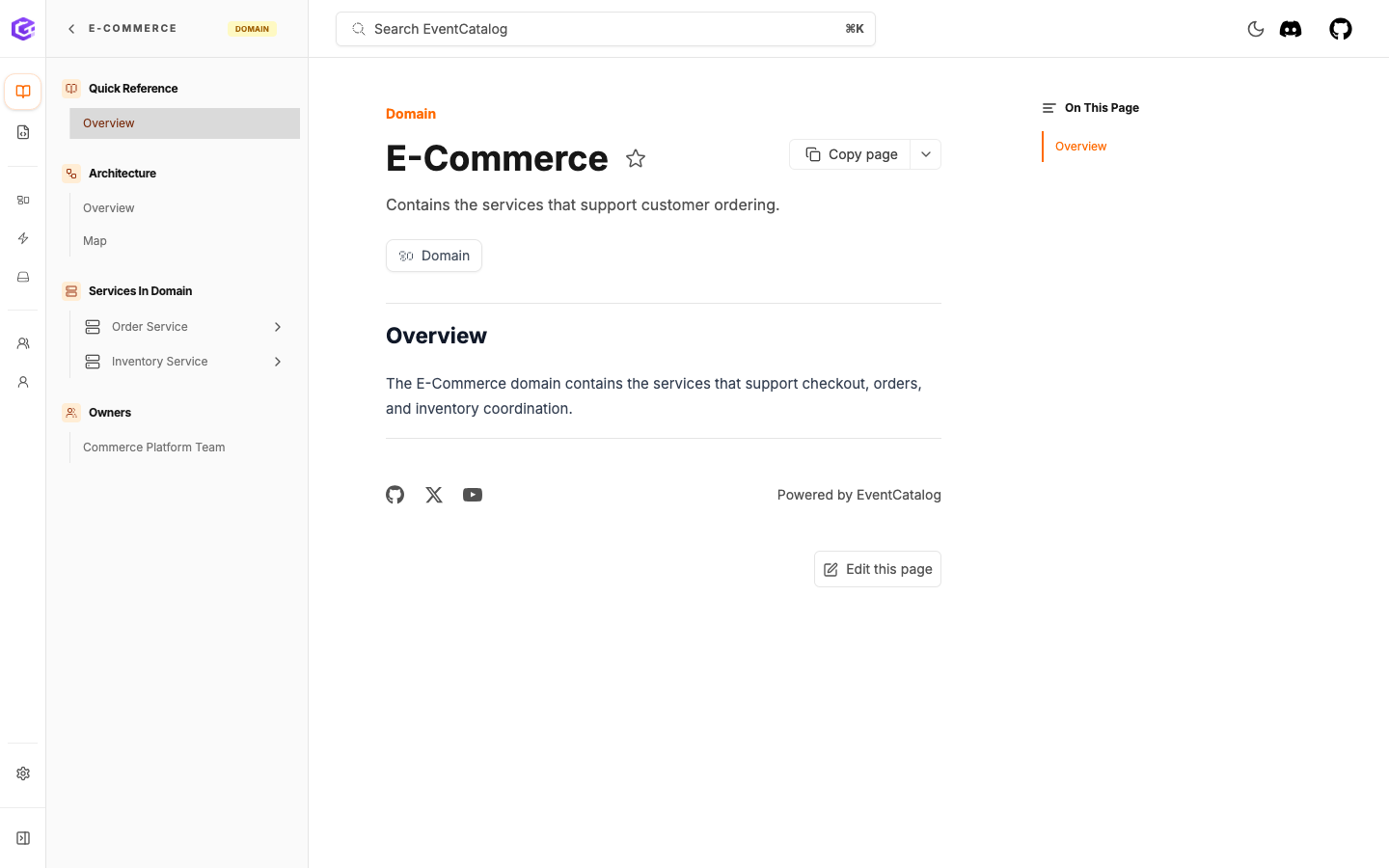
The E-Commerce domain groups Order Service and Inventory Service.
Check the domain map
Open the Map view from the domain page.
EventCatalog shows the services that belong to the domain. Because those services already publish and consume OrderPlaced, the map also shows that relationship. You still only added services to the domain.
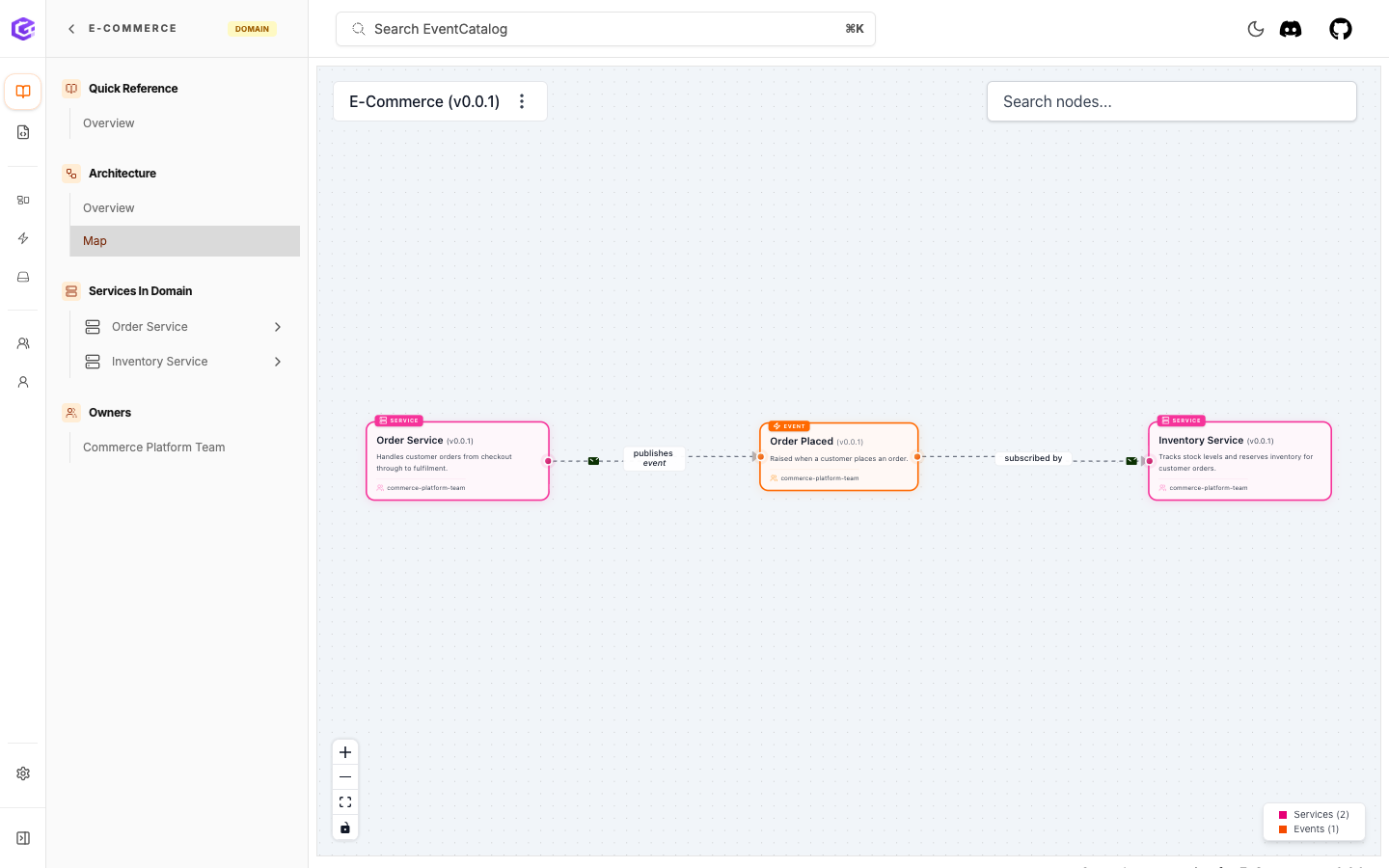
The E-Commerce domain map shows the services in the domain and the event relationship between them.
You can also embed the domain visualization directly into the domain documentation page with the NodeGraph component:
<NodeGraph />
What you have now
Your catalog now has:
- two services
- one event
- a schema
- producer and consumer relationships
- ownership
- an
E-Commercedomain that groups the services
Next
Continue to Visualize your catalog.