Use the Flow Editor
Use the Flow Editor when you want to document a business process, user journey, or architecture workflow without editing the flow files by hand.
Flow resources are still stored in your local EventCatalog project. The editor gives you a visual way to create and arrange the steps, then writes the change back to your catalog files.
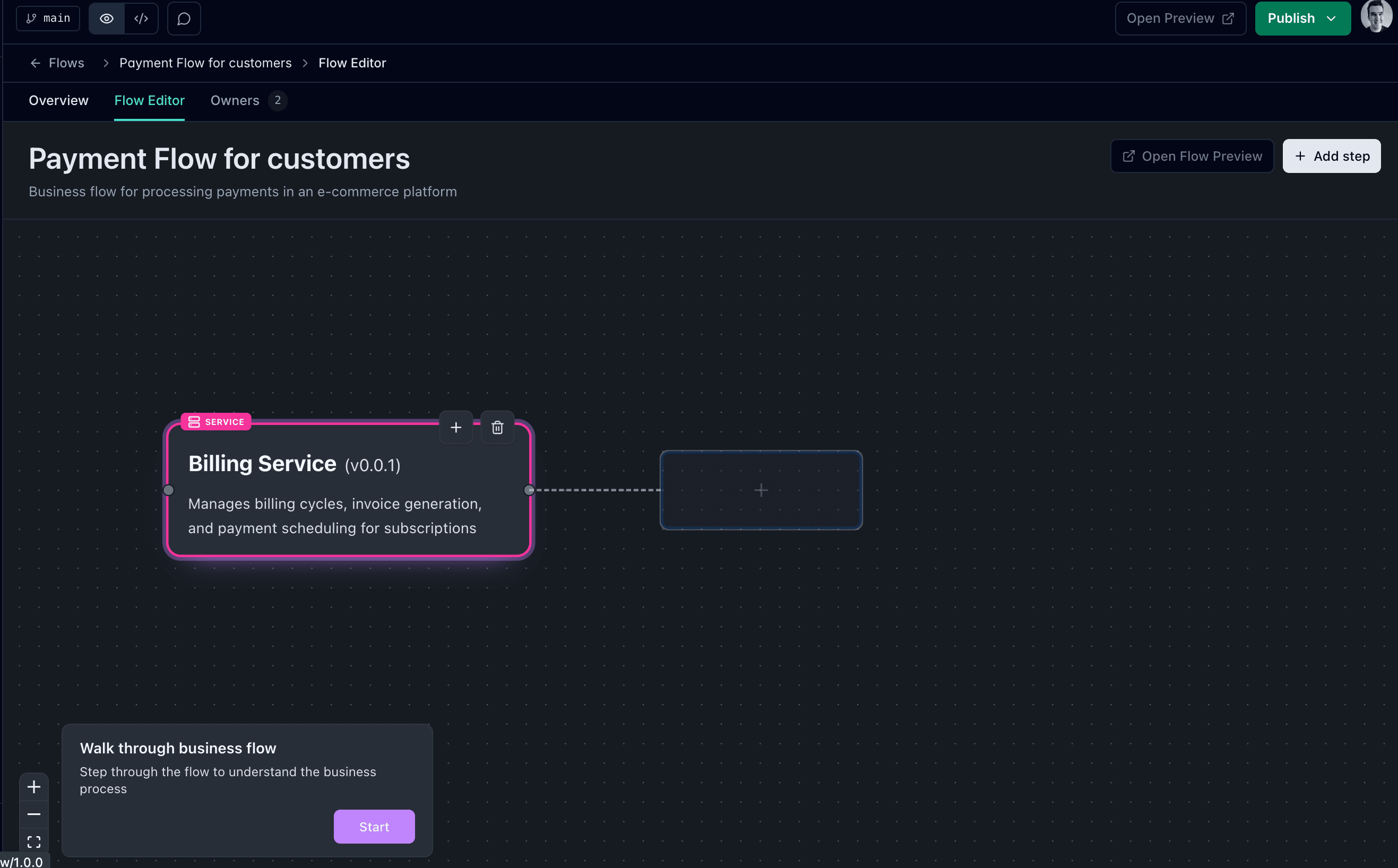
Open a flow
Start EventCatalog Editor and open a flow from the resource list.
If you are creating a new flow, create it from the editor first, then open it from the flow list.
Click the Flow Editor tab at the top of the resource to switch from the documentation view into the visual editor.
Add a step
Use Add step or choose an empty node in the flow.
The editor opens a picker so you can choose what kind of node belongs in the flow.
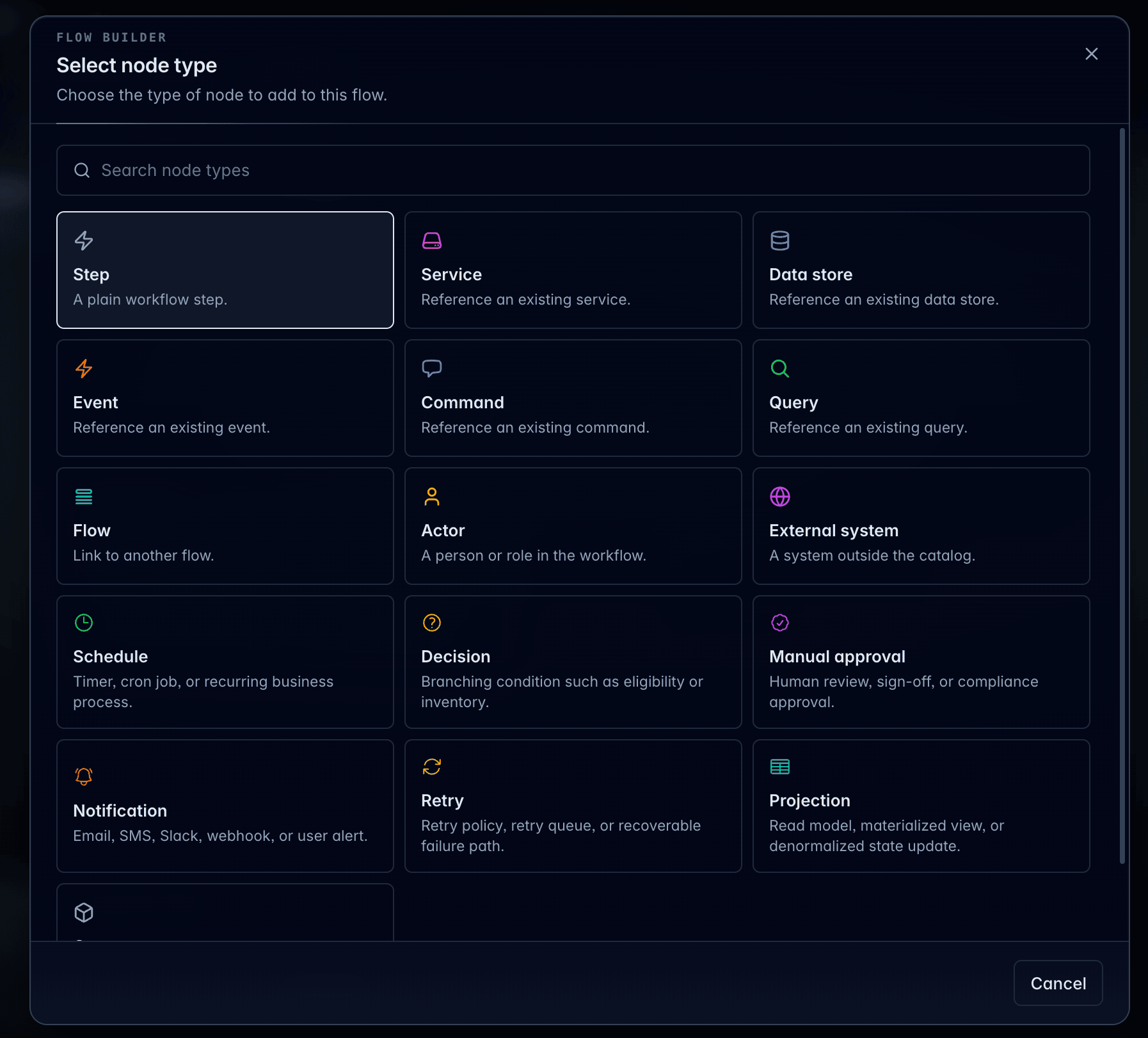
Choose the right node
Use the node picker to add the resource that best represents the next step.
For example:
- Add a service when a system performs work
- Add an event when something has happened
- Add a command when one system asks another system to do something
- Add a query when the flow reads information
Use existing catalog resources when they already exist. Create new resources when the flow reveals something that is missing from the catalog.
Review the flow
After adding steps, read the flow from left to right and check that it tells the story clearly.
Check that:
- The flow starts with the trigger or first meaningful step
- Each step uses the most accurate resource type
- Resource names match the language your team uses
- The flow is clear enough for someone who was not in the design discussion
Preview the flow
Use Open Preview to view the flow in your local EventCatalog site.
Preview helps you check how the flow will look to readers before you publish the local commit.
Publish the change
Open Changes and review the files the Flow Editor changed.
When the diff looks right, click Publish. In the beta editor, Publish commits your changes locally to Git.
After publishing, continue with your team's normal Git review and release workflow.