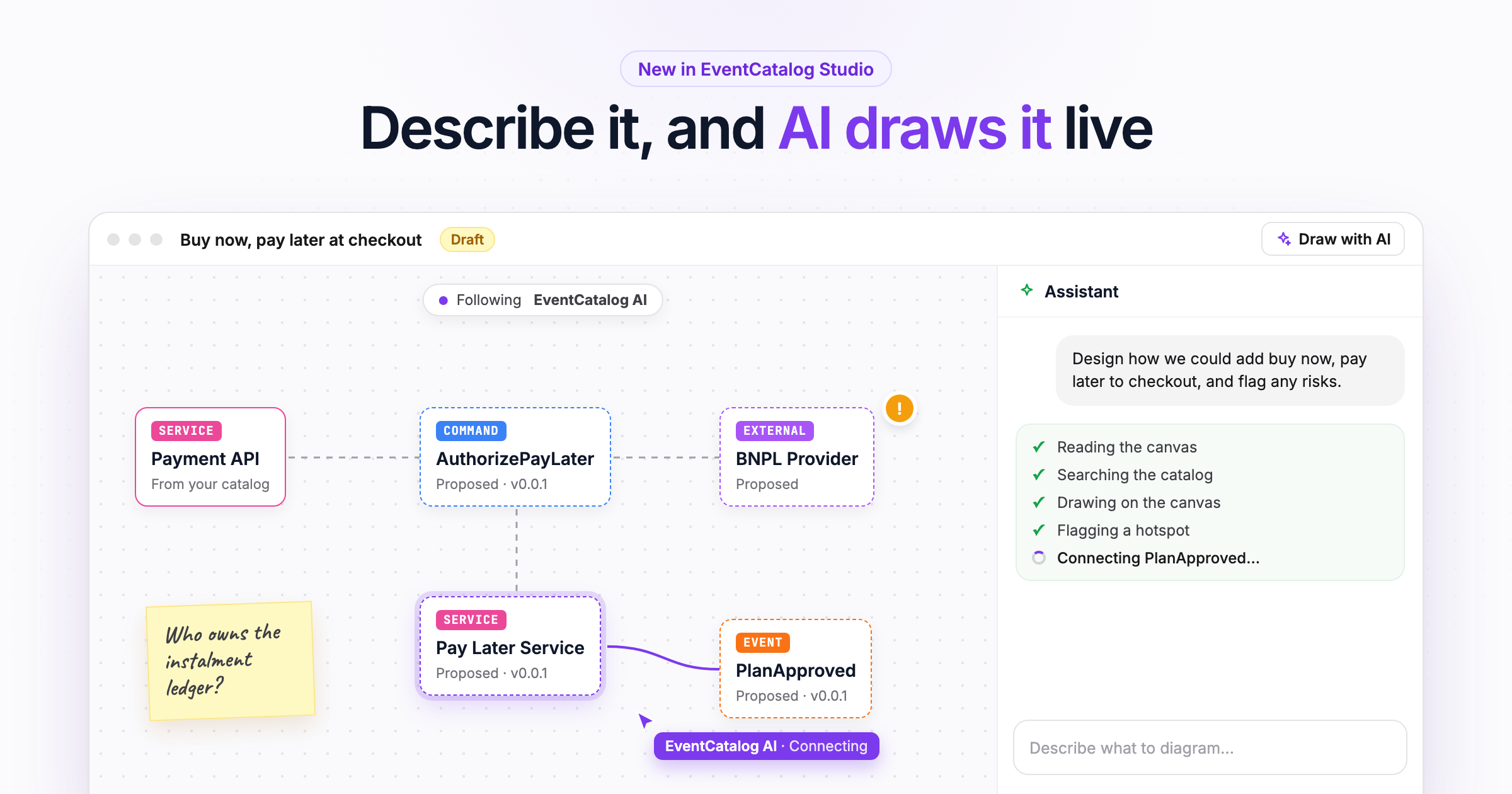
Describe what you want to design and the assistant draws it on an EventCatalog Studio canvas, live. It builds from the services and messages you already document, uses the model you choose, flags risks with hotspots, and walks your team through the design.
Last week we launched EventCatalog Studio (v2), live canvases inside your catalog for designing what comes next with your team.
A canvas is a good place to design, but you still have to draw on it. You know what you want to explore, whether that's adding buy now, pay later to checkout, splitting the Order Service, or seeing where the Payments domain might break. Most of the work is the drawing: finding the right services, dragging them on, connecting the right messages, and laying it all out. By the time it looks right, the meeting is over.
General-purpose AI tools don't help much here. They'll draw you boxes and arrows, but they don't know your architecture, so the services are made up and the names are wrong.
Today we're adding Draw with AI to EventCatalog Studio. Describe what you want to design, and the assistant draws it on a Studio canvas while you watch. It uses the services and messages in your catalog, and the AI model you choose.
Here's what it looks like. Type a request, and the assistant draws it:
An empty canvas. Describe what to design, and the assistant draws it here.
Describe it, and watch it draw
Open a canvas in Studio and click Draw with AI in the top right. The assistant opens beside the canvas, ready for you to describe what you want.
It doesn't hand you an image when it's done. It works on the canvas in front of you:
- It reads the canvas first, so it builds on what's already there instead of drawing it twice.
- It searches your catalog for the domains, services and messages you mentioned.
- It draws with its own pointer, one step at a time ("Adding Pay Later Service", "Connecting PlanApproved"). Your view follows it while it works, and Stop lets you look around on your own.
- It tidies the layout when it's done, keeping sticky notes beside the parts of the diagram they're about.
The chat shows each step as it happens, so you can tell what it's doing and why.
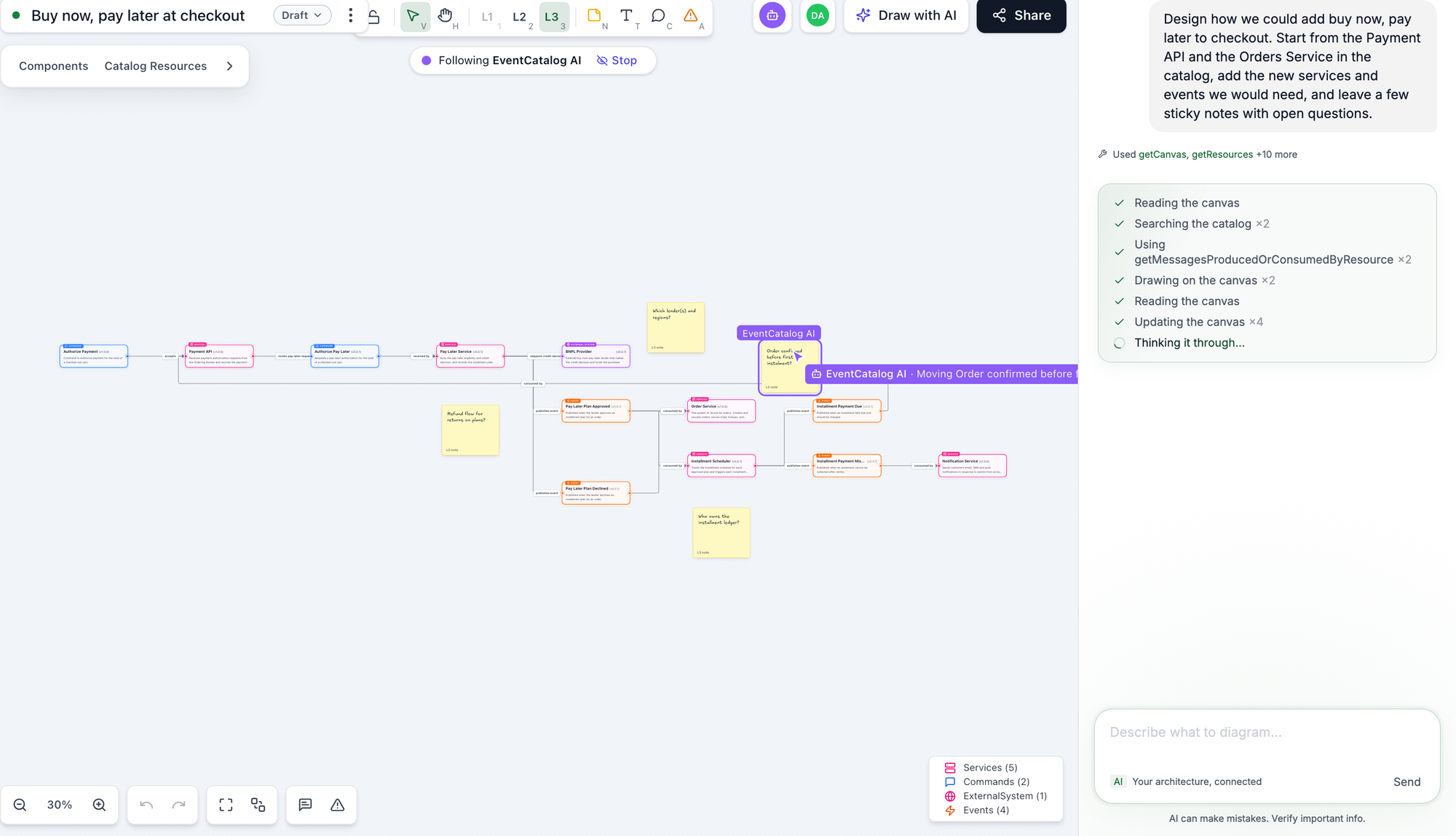
Asking the assistant to design buy now, pay later at checkout. It found the Payment API and Order Service in the catalog, added the new services and events, and is placing sticky notes with open questions.
It starts from your architecture, not a guess
This is what makes Draw with AI different from asking a chatbot for a diagram.
The assistant uses the resources in your catalog, with their real names, versions and summaries. Ask for "the Payments domain" and it adds the domain with everything in it. Ask about a service and it brings in the messages it sends and receives. Connections between catalog resources come from your documentation, not from the model.
It only invents what doesn't exist yet. In the example above, the Payment API and Order Service came from the catalog. The Pay Later Service, the new command and events, and the lender are new ideas, marked as proposed and drawn next to the parts of the architecture they change. When it can't find something in your catalog, it tells you.
Remember that a canvas is a design. Nothing the assistant draws changes your catalog files.
Design new ideas, or change what you have
You can start from an empty canvas, or from something that already exists.
For new ideas, open a new canvas and describe the change. "Create a new diagram" in the chat asks what you'd like to draw straight away.
For changes, open any diagram in your catalog with Open in Studio, then ask the assistant to change it. Studio copies the diagram onto a new canvas, so you can try ideas without touching the original.
A few things to try:
- "Map out the Payments domain"
- "Add a fraud check between checkout and the Payment API"
- "How could we split the Order Service?"
- "Review my architecture and highlight any risks"
After each answer, the assistant suggests follow-up questions based on what's on the canvas.
Let it find the risks with hotspots
Ask the assistant to review a design and it flags what it finds with hotspots: markers on the nodes at risk, marked Critical, Warning or Info, each with a short title and why it matters.
I asked it to map out the Payments domain in our example catalog and flag any single points of failure. It drew the domain and flagged six risks, including a webhook endpoint that every Stripe outcome goes through and a database shared by two services.
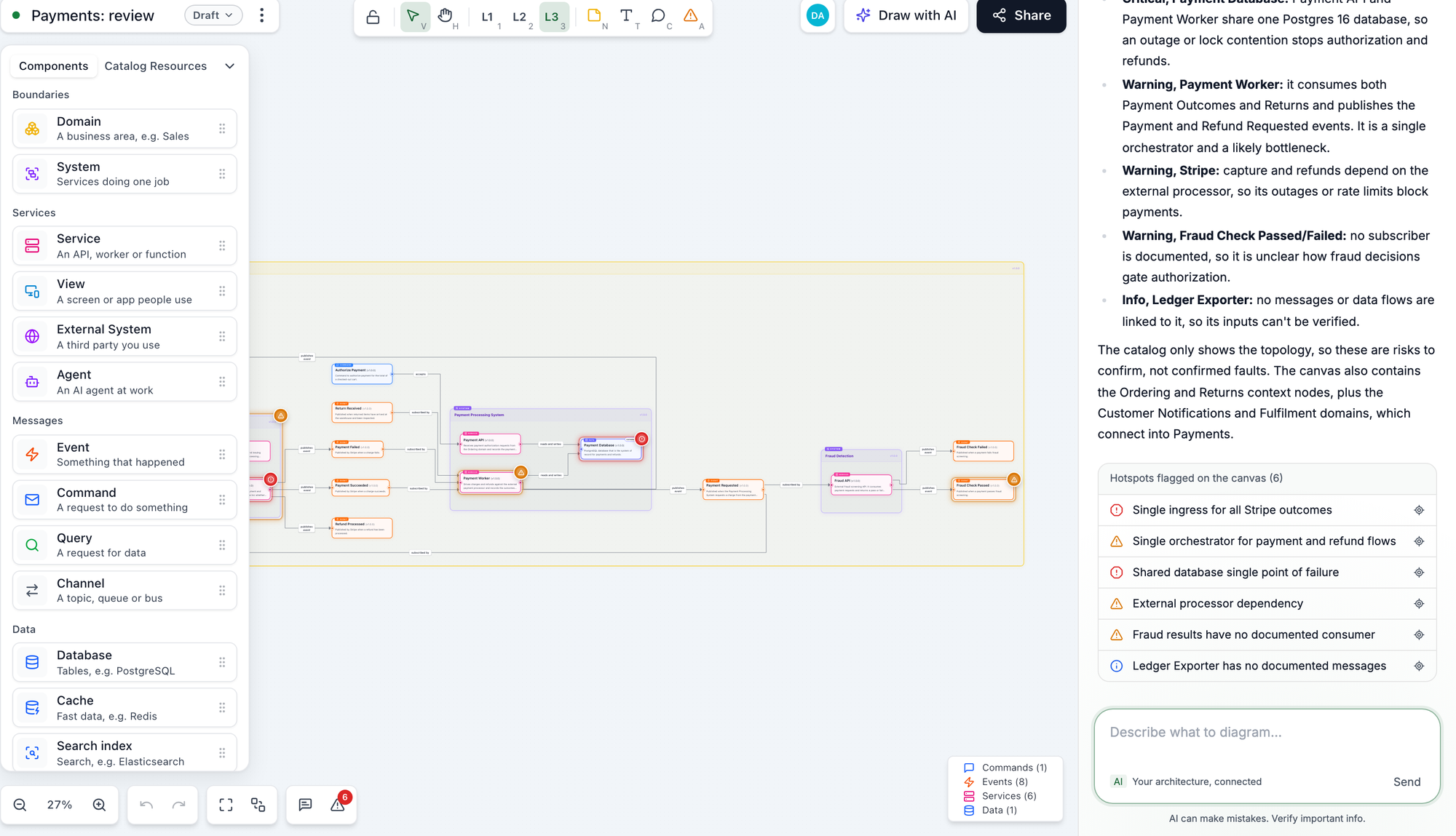
The hotspots the assistant flagged are listed under its reply. Click one to go to it on the canvas.
You won't agree with every hotspot, and that's fine. A hotspot is a prompt for the conversation your team should be having anyway, sitting on the exact node it's about. Every hotspot records who flagged it, so your team can see which ones came from the assistant.
We've also made hotspots easier to work through. Hotspots at the bottom of the canvas lists every hotspot with its severity and the node it's on. Hover or click a row to go straight to it, and the panel opens beside the marker. Delete a node, and its hotspots go with it.
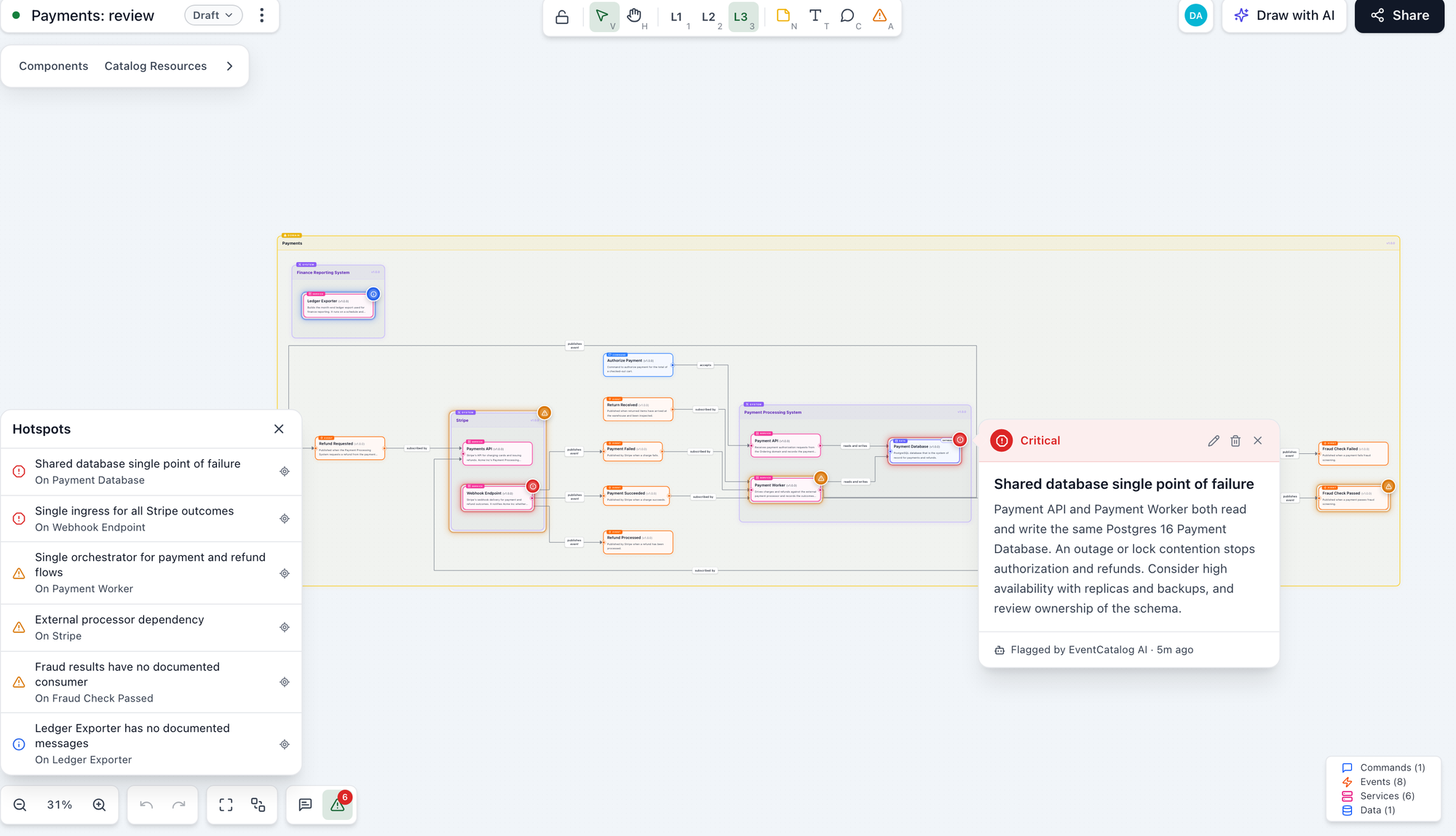
Working through hotspots on a canvas. Read more about hotspots.
Ask it to walk you through it
A diagram tells you what's there. It doesn't always tell you what happens.
Ask "walk me through how the pay-later checkout flow works" and the assistant answers with a step-by-step walkthrough. Each step says what happens and which nodes are involved, and selecting a step takes you to those nodes on the canvas.
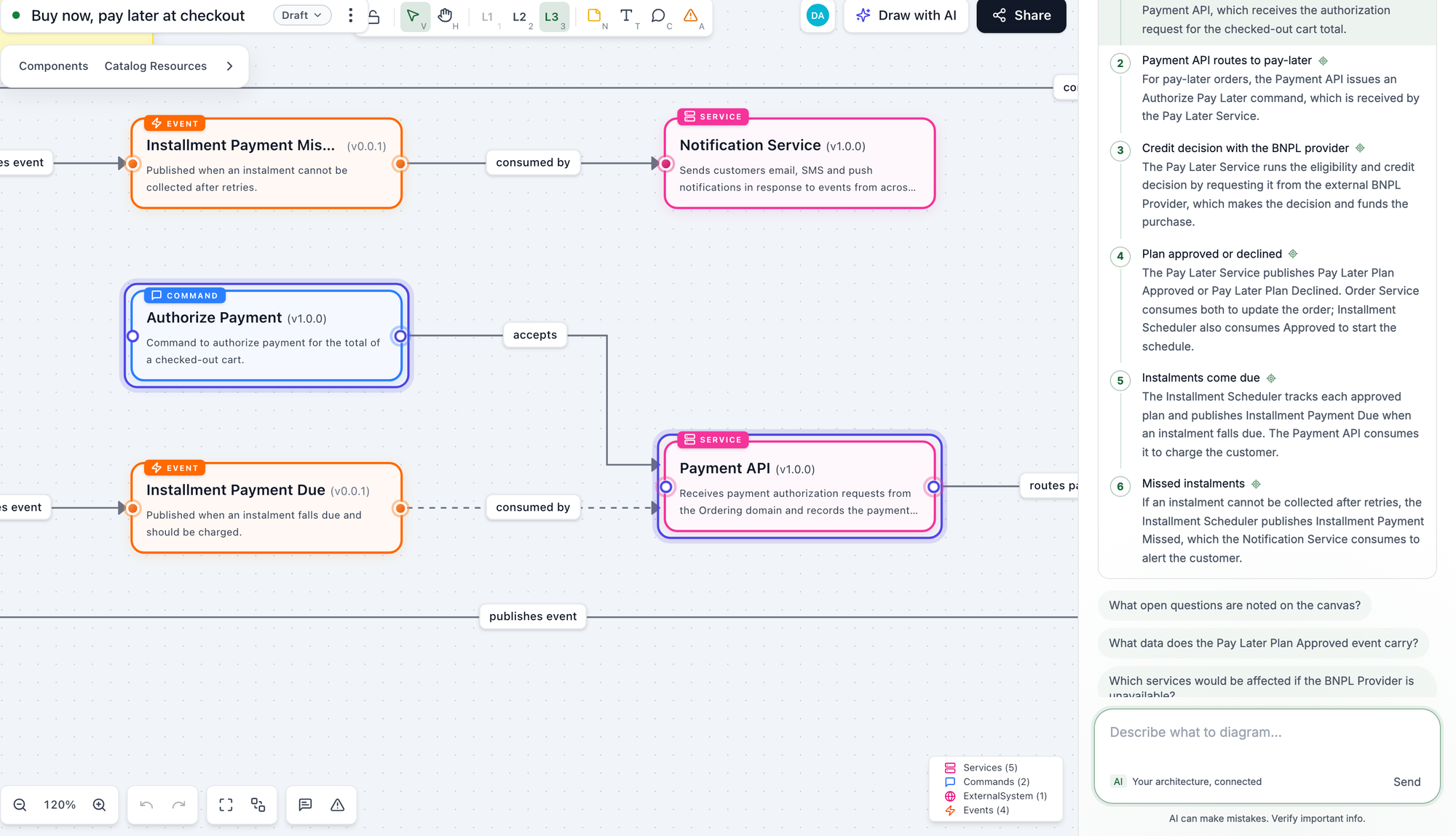
Whenever the assistant mentions something on the canvas, it links to it. Hover the name in its reply and the canvas takes you there. This is useful when someone joins a design late: they can ask the assistant to explain it instead of waiting for the person who drew it.
Design it together
Draw with AI is part of a shared canvas, not a private chat.
Everyone on the canvas sees the assistant's pointer and its changes as they happen, like your teammates' pointers. One person can ask the assistant to draw a first version, while others comment on it, move things around, flag their own hotspots, and move the canvas from Draft to Proposed when it's ready for review.
The assistant uses the same tools as the AI agents that join through the MCP server. If your team already uses Claude, Cursor or VS Code, they can connect their agent to the canvas and work on the same design.
Bring your own model
Draw with AI uses the EventCatalog Assistant, which runs on the model you configure. Pick any provider the AI SDK supports, such as Anthropic, OpenAI, Google, Mistral, Amazon Bedrock or Azure, and set it in eventcatalog.chat.js:
import { anthropic } from '@ai-sdk/anthropic';

export default async () => {
  return anthropic('claude-haiku-5-5');
};

export const configuration = {
  // New: pass options straight to your model provider
  providerOptions: {
    anthropic: { effort: 'medium' },
  },
};
This matters for a few reasons:
- Your keys, your bill, your choice. Use the provider your company already approved, and switch models when a better one comes out.
- Your architecture stays with you. Your catalog runs on your own infrastructure and talks to your model provider directly. Nothing goes through us.
- Pick the speed and cost you want. A small, fast model is plenty for most drawing. The screenshots in this post were drawn with Claude Haiku 5.5, and a full domain took about fifteen seconds.
configuration.providerOptions is new. Use it to pass provider-specific settings, such as Anthropic's effort, to your model.
Also new on the canvas
- A tidier right-click menu. Actions are grouped like a design tool's, with shortcuts on the right and Delete at the bottom. You can now cut, paste, edit text and change a sticky note's colour from the menu.
- A resizable assistant. Drag the left edge of the assistant panel to make it wider or narrower, and EventCatalog remembers the width.
- Sticky notes and text for agents. Agents (MCP and the assistant) can now add sticky notes and text, and they're always placed clear of other nodes.
See the pull requests for everything that changed: #3021 and #3025.
Try it
Draw with AI is in EventCatalog 5.7.1, and the hotspot and menu improvements are in 5.7.2. Upgrade your catalog to the latest version:
npm install @eventcatalog/core@latest
Then:
- Run your catalog in server mode (
output: 'server'). Studio is on ineventcatalog dev, and you can turn it on in production. - Configure your model in
eventcatalog.chat.js(see Bring your own model), and add your provider's API key to.env. - Open Studio from the sidebar, start a canvas, and click Draw with AI.
New to Studio? Start with Create a canvas.
Pick something your team is planning this quarter, describe it to the assistant, and share the canvas with the people who need to see it. I'd love to see what you draw.
Read the Draw with AI docs, share your designs and feedback in Discord, or open an issue on GitHub.