# Installation
Copy as Markdown[View as Markdown](/docs/plugins/backstage/installation.md)
***
**License:** `Dual-license`
Using Backstage plugin version 1.0.0?
We introduced some breaking changes in the plugin, and the ways you map your resources to EventCatalog resources.
We recommend using the latest version of the plugin. You can read the [migration guide](#migrating-from--100-to-100) to help you upgrade.
***
## Configuring EventCatalog for Backstage[](#configuring-eventcatalog-for-backstage "Direct link to Configuring EventCatalog for Backstage")
You will need a license key to use the backstage integration, this is either the SCALE license key or the Backstage license key.
You can get a 14 day trial license key from [EventCatalog Cloud](https://eventcatalog.cloud).
Once you have a license key for Backstage, you will need to build and deploy your EventCatalog with the license key set.
#### 1. Setting license key in `.env` file (recommended)[](#1-setting-license-key-in-env-file-recommended "Direct link to 1-setting-license-key-in-env-file-recommended")
**Added in** `eventcatalog@2.35.4`
Create a `.env` file in the root of your project and add the following:
.env
```
# If you have a Backstage license key
EVENTCATALOG_LICENSE_KEY_BACKSTAGE=your-license-key
# If you have a SCALE license key
EVENTCATALOG_SCALE_LICENSE_KEY=your-scale-license-key
```
Using an older version of EventCatalog?
If you are using an older version of EventCatalog that does not support the `.env` file, you can just export the license key as an environment variable.
Setting license key in environment variables
```
# If you have a Backstage license key
export EVENTCATALOG_LICENSE_KEY_BACKSTAGE=your-license-key
# If you have a SCALE license key
export EVENTCATALOG_SCALE_LICENSE_KEY=your-scale-license-key
```
This will enable you to use EventCatalog within backstage.
## Configuring Backstage to use EventCatalog[](#configuring-backstage-to-use-eventcatalog "Direct link to Configuring Backstage to use EventCatalog")
### 1. Install the plugin on Backstage[](#1-install-the-plugin-on-backstage "Direct link to 1. Install the plugin on Backstage")
First install the plugin in your Backstage instance.
```
yarn add @eventcatalog/backstage-plugin-eventcatalog
```
### 2. Add the EventCatalog URL to the app-config.yaml[](#2-add-the-eventcatalog-url-to-the-app-configyaml "Direct link to 2. Add the EventCatalog URL to the app-config.yaml")
The EventCatalog plugin needs to know the URL of your EventCatalog instance. This can be set in the `app-config.yaml` file.
```
eventcatalog:
URL: "https://demo.eventcatalog.dev"
```
### 3. Mapping Backstage resources to EventCatalog resources with annotations[](#3-mapping-backstage-resources-to-eventcatalog-resources-with-annotations "Direct link to 3. Mapping Backstage resources to EventCatalog resources with annotations")
Backstage and EventCatalog have different ways to create resources. For example backstage supports components, APIS, domains, systems etc, and EventCatalog supports resources (domains, services and messages (queries, commands and events)).
When you configure the plugin you need to map Backstage information to EventCatalog information, so the plugin knows which EventCatalog page to render.
We do this by adding annotations to the Backstage resources.
| Annotation | Required | Default | Description |
| ----------------------------- | -------- | -------------------- | ---------------------------------------------------------------------------------------------------------------------- |
| `eventcatalog.dev/id` | Yes | - | The id of the resource in EventCatalog |
| `eventcatalog.dev/version` | No | `latest` | The version of the resource in EventCatalog |
| `eventcatalog.dev/collection` | No | Uses the entity kind | The collection of the resource in EventCatalog. Options include `services`, `domains`, `queries`, `commands`, `events` |
Example of creating a new service in Backstage and mapping it to an EventCatalog resource:
```
apiVersion: backstage.io/v1alpha1
kind: Component
metadata:
name: backend-service
description: Backend API service
annotations:
github.com/project-slug: organization/backend-repo
# Here we map the Backstage service to an EventCatalog resource
# The id of the resource in EventCatalog
eventcatalog.dev/id: InventoryService
# The version of the resource in EventCatalog
eventcatalog.dev/version: 0.0.2
# The collection of the resource in EventCatalog
eventcatalog.dev/collection: services
tags:
- nodejs
- express
- api
spec:
type: service
lifecycle: production
owner: team-name
system: example-system
providesApis:
- backend-api
dependsOn:
- resource:default/database
```
### 4. Using the components in Backstage[](#4-using-the-components-in-backstage "Direct link to 4. Using the components in Backstage")
You have two options to use the components in Backstage:
* [Embed EventCatalog as a tabbed page](#tabbed-pages)
* [Embed EventCatalog as a card component](#card-components)
#### Tabbed pages[](#tabbed-pages "Direct link to Tabbed pages")
The `EventCatalogDocumentationEntityPage` components, is a full page component that you can assign to any `EntityLayout.Route`.
```
import { EventCatalogDocumentationEntityPage } from "@eventcatalog/backstage-plugin-eventcatalog";
```
You can import the `EventCatalogDocumentationEntityPage` component to render EventCatalog pages as full pages in your Backstage entity.
**Rendered output example:**
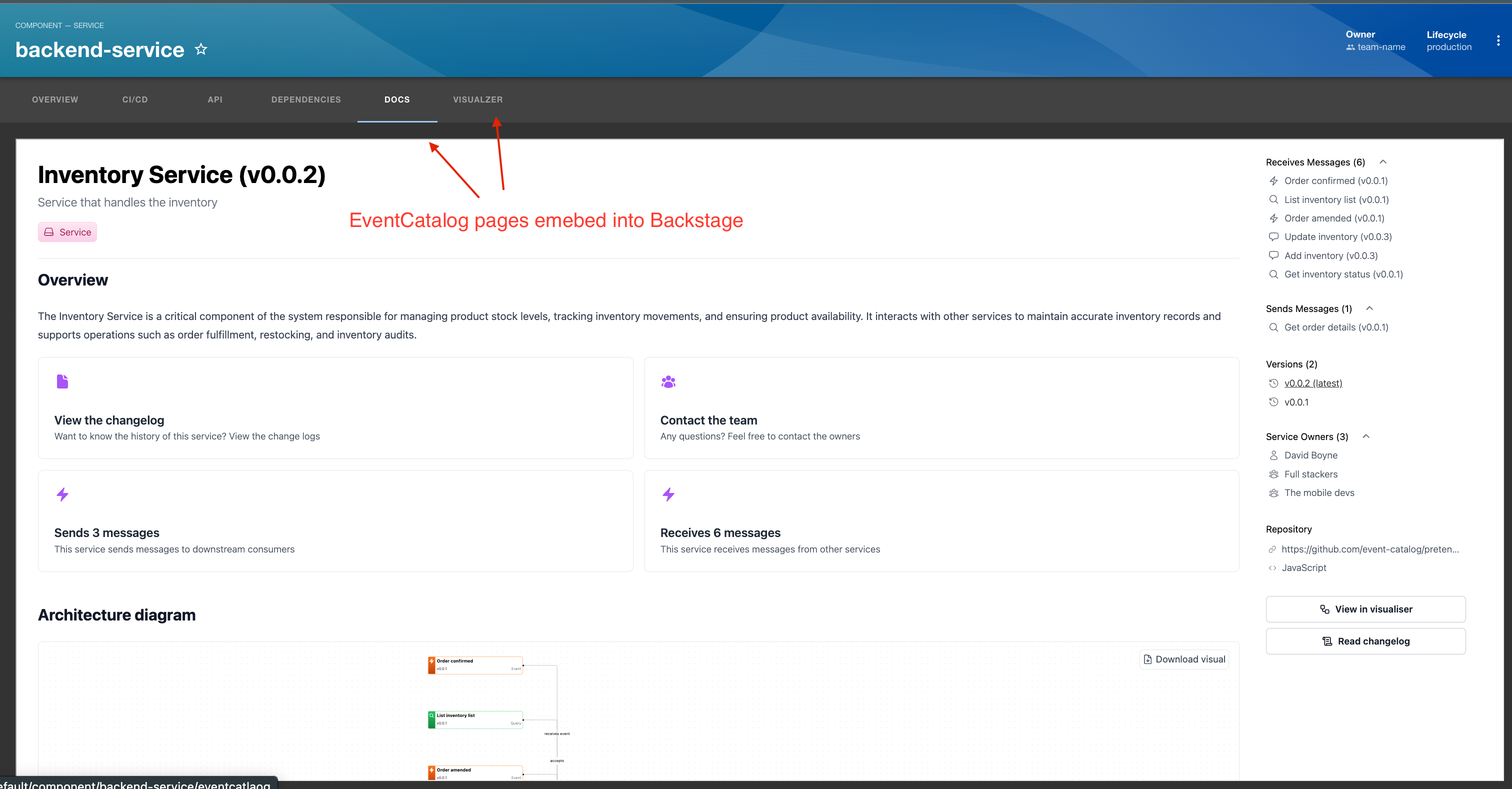
**Usage Example:**
```
// Will create a new tab called "Docs" and route called /eventcatalog. This will embed the docs for that
// entity in your page. Using the info from the app-config to map your Backstage ID to EventCatalog ID
// Will create a new tab called "Visualzer" and route called /eventcatalog-visualizer.
// This will embed the EventCatalog visualiser to your Backstage entity
// Will create a new tab called "Entity Map" and route called /eventcatalog-entity-map.
// This will embed the EventCatalog entity map to your Backstage entity
// Will create a new tab called "Schema Explorer" and route called /eventcatalog-schema-explorer.
// Override the id, collection and version of the resource in EventCatalog
// you can choose to override what is rendered, (not read from your backstage configuration)
```
#### Card components[](#card-components "Direct link to Card components")
These components can be added to your pages as Cards, that can live inside the Backstage Grid System.
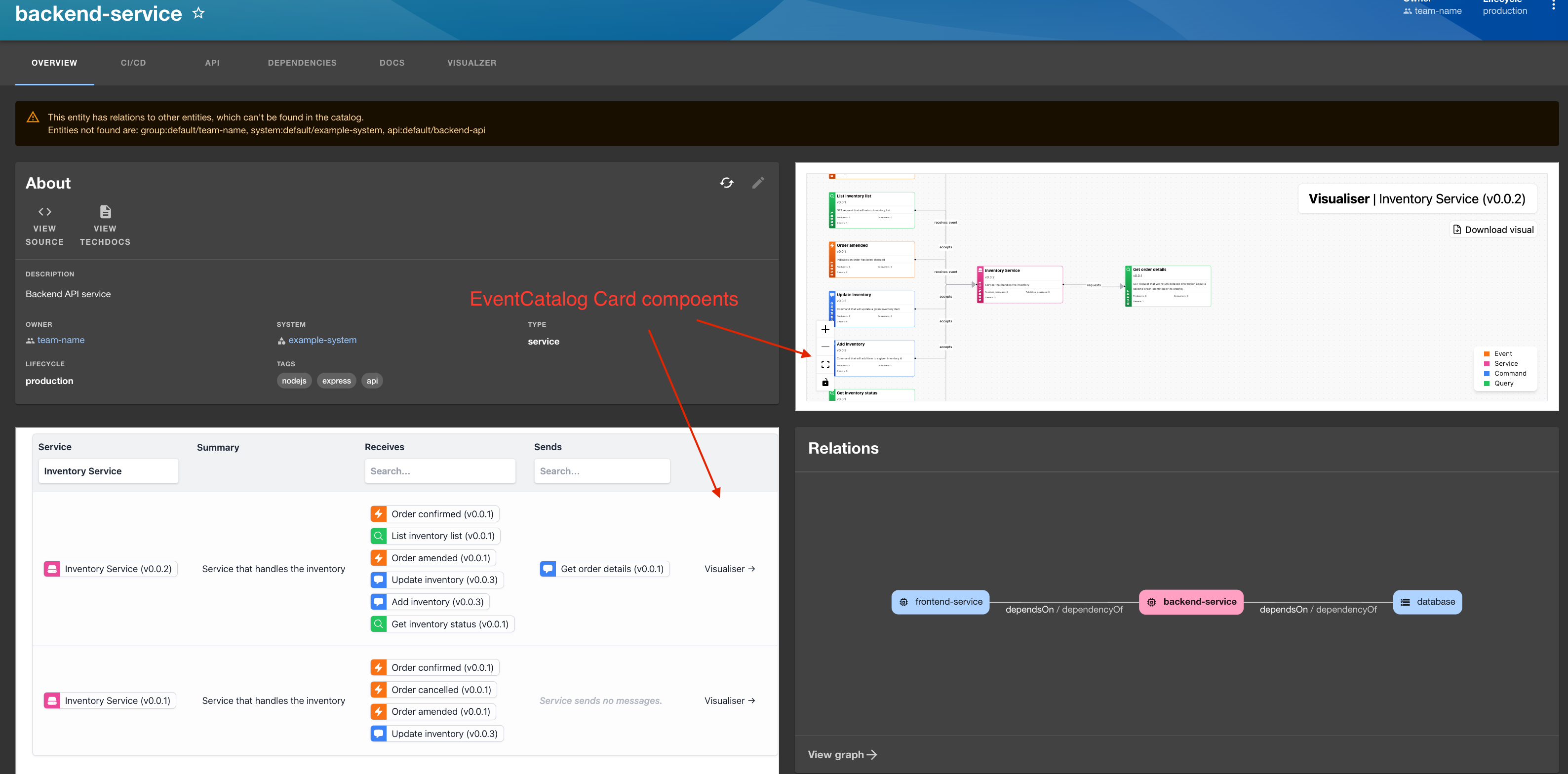 
```
import {
EventCatalogEntityVisualiserCard,
EventCatalogEntityMessageCard,
} from "@eventcatalog/backstage-plugin-eventcatalog";
;
```
***
## Migrating from < 1.0.0[](#migrating-from--100 "Direct link to Migrating from < 1.0.0")
We introduced some breaking changes in the plugin, and the ways you map your resources to EventCatalog resources.
Previously you mapped your resources to EventCatalog resources in the `app-config.yaml` file.
```
eventcatalog:
services:
- backstage-name: "backend-service"
eventcatalog-id: "InventoryService"
```
Now you have to use annotations to map your resources to EventCatalog resources.
```
apiVersion: backstage.io/v1alpha1
kind: Component
metadata:
name: backend-service
annotations:
eventcatalog.dev/id: "InventoryService"
eventcatalog.dev/version: "0.0.2"
eventcatalog.dev/collection: "services"
```
This are the preferred ways to map your resources to EventCatalog resources and following Backstage best practices.
## Demo[](#demo "Direct link to Demo")
If you want to learn how the code works in a basic demo [you can see our demo on GitHub](https://github.com/event-catalog/backstage-eventcatalog-demo).