# Creating channels
Copy as Markdown[View as Markdown](/docs/development/guides/resources/messages/message-channels/adding-channels.md)
***
A message channel documents how messages are transported between producers and consumers. A channel might represent a Kafka topic, queue, event bus, HTTP route, webhook, or any other transport your architecture uses.

## Adding a new channel[](#adding-a-new-channel "Direct link to Adding a new channel")
### Automatic Creation[](#automatic-creation "Direct link to Automatic Creation")
Copy this prompt and paste it into your coding agent. Your agent can help you choose where the channel should live, create the right folder structure, and add the first version of the channel documentation.
### Manual Creation[](#manual-creation "Direct link to Manual Creation")
Channels live in a `/channels` folder. This folder can be placed anywhere in your catalog.
* channels
/
* inventory.{env}.events
/
* index.mdx
* services
/
* Orders
/
* channels
/
* orders.events
/
* index.mdx
*Here is an example of what a channel markdown file may look like. [You can read the channel reference](/docs/development/guides/resources/messages/message-channels/reference.md).*
/channels/inventory.{env}.events/index.mdx (example)
```
---
# id of your channel, used for slugs and references in EventCatalog.
# this channel is using dynamic naming using parameters
id: inventory.{env}.events
# Display name of the Channel, rendered in EventCatalog
name: Inventory channel
# Version of the Channel
version: 0.0.1
# Short summary of your Channel
summary: |
Central event stream for all inventory-related events including stock updates, allocations, and adjustments
# Optional owners, references teams or users
owners:
- dboyne
# Address of the channel, this example shows a kafka address with parameters, but it can be anything
address: inventory.{env}.events
# optionally document the params for your channel name
# here we know that the channel address "env" value can be "dev,stg,or prod"
parameters:
env:
enum:
- dev
- stg
- prod
description: 'Environment to use'
---
### Overview
The Inventory Events channel is the central stream for all inventory-related events across the system. This includes stock level changes, inventory allocations, adjustments, and stocktake events. Events for a specific SKU are guaranteed to be processed in sequence when using productId as the partition key.
```
***
### Using parameters in channel names[](#using-parameters-in-channel-names "Direct link to Using parameters in channel names")
You may have some channel names/addresses that are dynamic. For example `address: inventory.{env}.events`.
The channel `address: inventory.{env}.events` shows us the channel name is dynamic with the given parameter `env`.
In your channel you can document your parameters, give them values, default values and descriptions.
```
---
# channel markdown file.
# The dynamic address
address: inventory.{env}.events
# optionally document the params for your channel name
# here we know that the channel address "env" value can be "dev,stg,or prod"
parameters:
env:
# What values for the parameter? (optional)
enum:
- dev
- stg
- prod
# what is the default value (optional)
default: dev
# Any examples if you want to list them
examples:
- dev
- stg
- prod
# Describe the channel information (optional)
description: 'Environment to use'
---
```
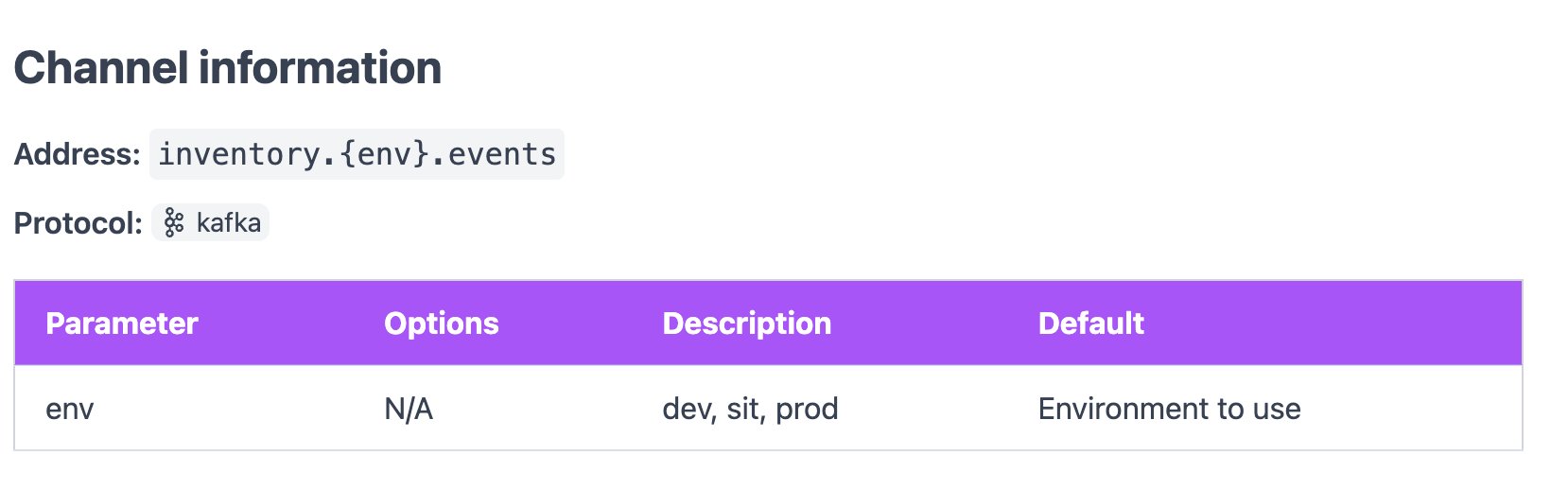
Once this information is defined, it can then be rendered on your page using the `` component.
#### Example output using the `` component[](#example-output-using-the-channelinformation--component "Direct link to example-output-using-the-channelinformation--component")
### Using protocols in channels[](#using-protocols-in-channels "Direct link to Using protocols in channels")
Your channel can have one or many protocols. To define a protocol you add the property to your channel.
```
---
id: inventory.{env}.events
# rest of channel markdown...
# You can define one or many protocols
# list of protocols: https://eventcatalog.dev/docs/development/guides/resources/messages/message-channels/introduction#protocols
protocols:
- http
- kafka
- mqtt
---
```
These protocols will be displayed on your channel page and the visualizer.
You can get [the list of protocols here](/docs/development/guides/resources/messages/message-channels/introduction.md#protocols).
### Setting a delivery guarantee[](#setting-a-delivery-guarantee "Direct link to Setting a delivery guarantee")
You can document the delivery guarantee for your channel using the `deliveryGuarantee` field. This tells consumers what to expect regarding message delivery behavior.
```
---
id: inventory.{env}.events
# How reliably messages are delivered through this channel
# Accepted values: at-most-once | at-least-once | exactly-once
deliveryGuarantee: at-least-once
---
```
When set, the visualiser shows a colored badge on the channel node. You can read more about the accepted values in the [channel reference](/docs/development/guides/resources/messages/message-channels/reference.md#deliveryGuarantee).