# Entity Maps
Copy as Markdown[View as Markdown](/docs/development/guides/domains/entities/domain-entity-map.md)
***
**Added in** `eventcatalog@2.49.0`
The Entity Map is a visualization feature in EventCatalog that helps you understand the relationships between entities within your domains and services. Since entities represent the core building blocks of your domain model, visualizing their connections provides valuable insights into your architecture.
## What is the Entity Map?[](#what-is-the-entity-map "Direct link to What is the Entity Map?")
The Entity Map is a visual representation that shows how entities are connected within a domain or service. It displays:
* **Entities**: The core objects with unique identity in your domain
* **Relationships**: How entities connect to each other
* **Context**: Which domain or service each entity belongs to
* **Hierarchical Structure**: How entities are organized
This visualization helps teams understand the domain model at a glance and identify potential architectural improvements.
## Entity Map Views[](#entity-map-views "Direct link to Entity Map Views")
EventCatalog provides two main ways to view and interact with Entity Maps:
* [Entity Map in the Visualizer](#entity-map-in-the-visualizer)
* [Embed Entity Map as Component](#embed-entity-map-as-component)
### Entity Map in the Visualizer[](#entity-map-in-the-visualizer "Direct link to Entity Map in the Visualizer")
The **Entity Map Visualizer** is a dedicated page that provides a comprehensive view of all entities within a domain or service.
* Domains: `/visualiser/domains/{id}/{version}/entity-map` ([see demo](https://demo.eventcatalog.dev/visualiser/domains/Orders/0.0.3/entity-map))
* Services: `/visualiser/services/{id}/{version}/entity-map`
When a domain or service has entities assigned, an **Entity Map** link appears automatically in the sidebar under the visualizer section.
Entities that are referenced in another domain will be shown as **yellow**.
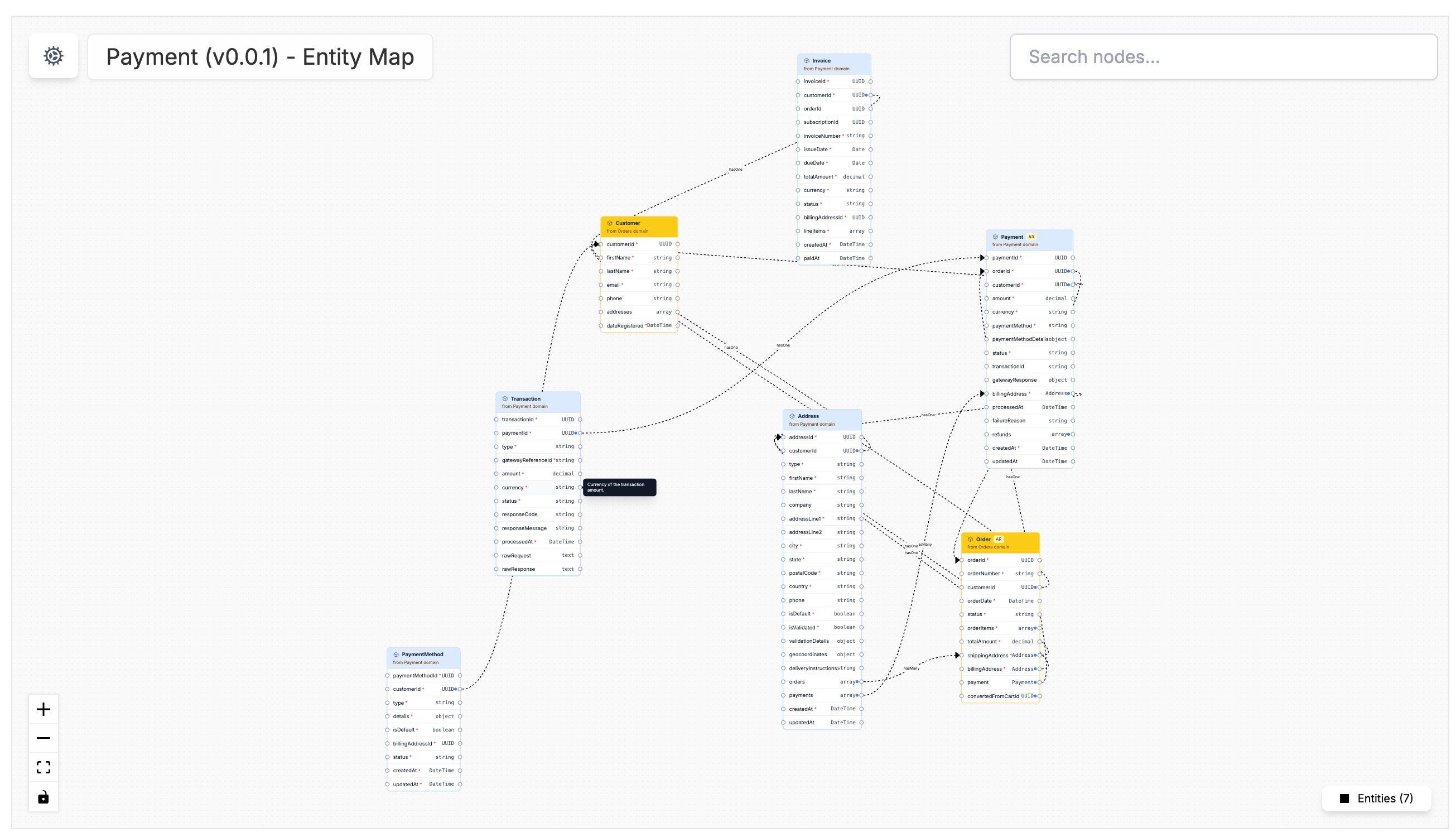
This full-screen visualization offers:
* **Interactive Navigation**: Click and drag to explore the entity relationships
* **Zoom Controls**: Zoom in for detailed views or zoom out for the big picture
* **Entity Details**: Hover over an entity property to see its description
* **Filter Options**: Focus on specific types of entities or relationships
### Embed Entity Map as Component[](#embed-entity-map-as-component "Direct link to Embed Entity Map as Component")
You can embed the Entity Map of a domain on any page in your catalog using the `` component ([see demo](https://demo.eventcatalog.dev/docs/domains/Orders/0.0.3#entity-map)).
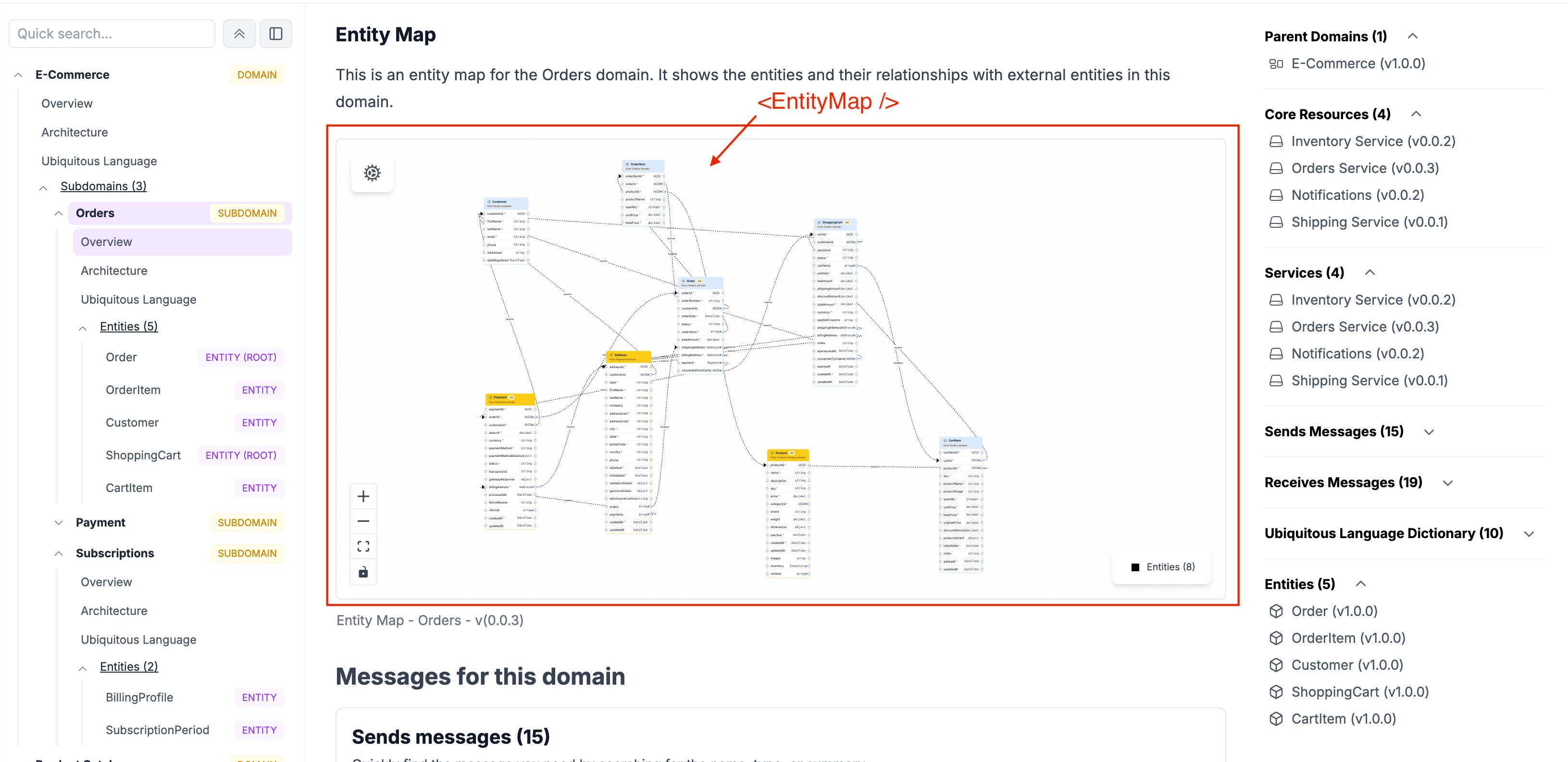
This compact version provides:
* **Contextual View**: Shows entities relevant to the current domain or service
* **Embedded Integration**: Seamlessly integrates with your documentation
* **Quick Reference**: Provides a visual summary without leaving the current page
* **Clickable Entities**: Navigate to detailed entity documentation
## How to create references between entities[](#how-to-create-references-between-entities "Direct link to How to create references between entities")
To define relationships between entities in EventCatalog, follow these steps:
### 1. Create Your Entities[](#1-create-your-entities "Direct link to 1. Create Your Entities")
Start by creating your entities in your EventCatalog.
Refer to the [entity creation guide](/docs/development/guides/domains/entities/adding-entities.md) for detailed instructions, or you can read the [Entity API documentation](/docs/api/entity-api.md) for more details.
### 2. Use Reference Fields in Properties[](#2-use-reference-fields-in-properties "Direct link to 2. Use Reference Fields in Properties")
Once your entities are created, you can use optional fields in your entity properties to define relationships between them.
The supported fields are:
* `references`: The name of the entity you want to reference (e.g. `Order`)
* `relationType`: The type of relationship (e.g. `hasOne`, `hasMany`, `belongsTo`)
* `referencesIdentifier`: The property name in the referenced entity used to establish the relationship (e.g. `orderId`)
*More information on the reference fields can be found in the [Entity API documentation](/docs/api/entity-api.md).*
### Example: `OrderItem` referencing `Order`[](#example-orderitem-referencing-order "Direct link to example-orderitem-referencing-order")
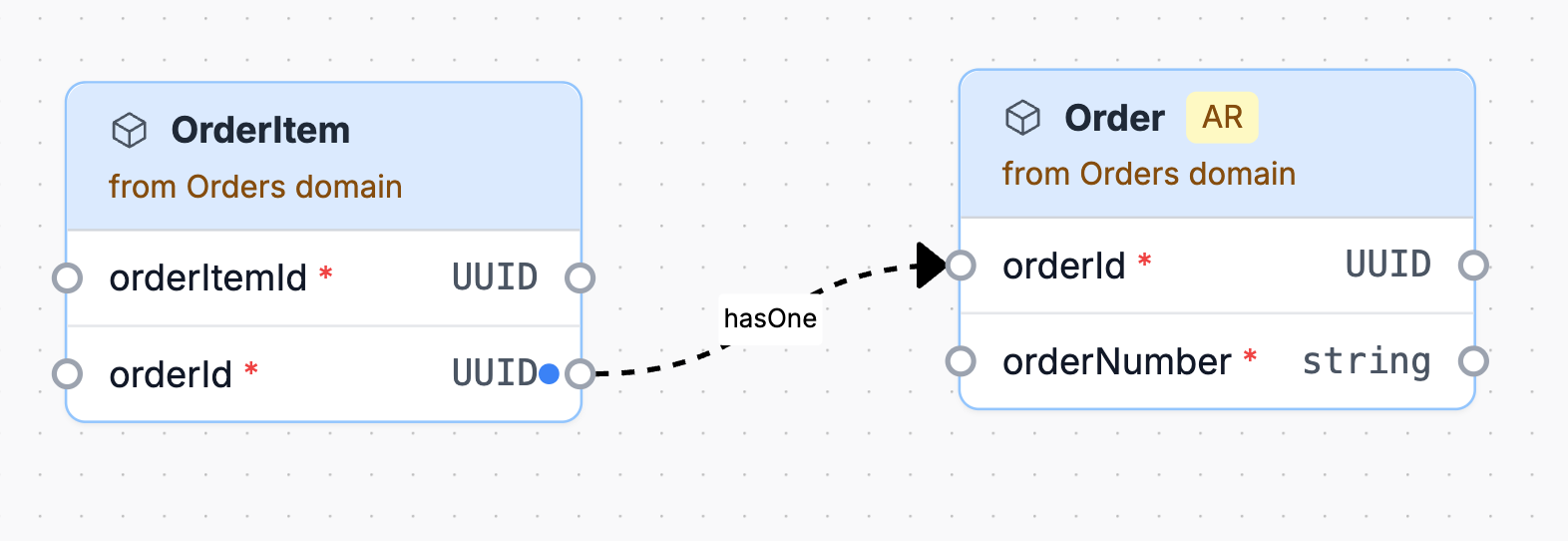
Let’s say you have an `OrderItem` entity that needs to reference an `Order` entity:
* The `orderId` property in `OrderItem` is used to reference the `Order`.
* Set `references` to `Order` to indicate which entity is being referenced.
* Set `relationType` to `hasOne` to represent that each `OrderItem` is linked to one `Order`.
* Set `referencesIdentifier` to `orderId` to specify the matching field in the `Order` entity.
```
---
id: OrderItem
name: OrderItem
version: 1.0.0
identifier: orderItemId
summary: Represents a single item within a customer's order.
properties:
- name: orderItemId
type: UUID
required: true
description: Unique identifier for the order item
- name: orderId
type: UUID
required: true
description: Identifier for the parent Order
references: Order
relationType: hasOne
referencesIdentifier: orderId
---
```
### Visual Output[](#visual-output "Direct link to Visual Output")
This configuration generates an entity map that visually shows the relationship between `OrderItem` and `Order`.
### Embed in Backstage[](#embed-in-backstage "Direct link to Embed in Backstage")
If you are using Backstage, you can embed the entity map in your Backstage entity page using the `` component.
You can read more about how to embed the entity map in Backstage in the [Backstage plugin documentation](/docs/plugins/backstage/installation.md).