# Creating channels
Copy as Markdown[View as Markdown](/docs/development/guides/channels/adding-channels.md)
***
**Added in** `eventcatalog@2.13.0`
Adding a channel to your Catalog is a great way for you to document how messages are transported between producers and consumers.
### What do channels look like in EventCatalog?[](#what-do-channels-look-like-in-eventcatalog "Direct link to What do channels look like in EventCatalog?")
 [View demo](https://demo.eventcatalog.dev/docs/channels/inventory.%7Benv%7D.events/1.0.0)
## Adding a new channel[](#adding-a-new-channel "Direct link to Adding a new channel")
To add a new channel create a new folder called `channels` and then add your channel files to it.
* `**/channels/{Channel Name}/index.mdx`
* (example `**/channels/EventsChannel/index.mdx`)
* (example `**/channels/inventory.{env}.events/index.mdx`)
* (example `**/channels/EventBus/index.mdx`)
Channels can be defined in any folder you like. This let's you group channels by domains, service, teams anything you want.
### Creating the channel file[](#creating-the-channel-file "Direct link to Creating the channel file")
Within your channel folder you will need to create an `index.mdx` file.
The `index.mdx` contents are split into two sections, **frontmatter** and the **markdown content**.
*Here is an example of what a channel markdown file may look like. [You can read the API docs for the channel front matter API](/docs/api/channel-api.md)*
/channels/inventory.{env}.events/index.mdx (example)
```
---
# id of your channel, used for slugs and references in EventCatalog.
# this channel is using dynamic naming using parameters
id: inventory.{env}.events
# Display name of the Channel, rendered in EventCatalog
name: Inventory channel
# Version of the Channel
version: 0.0.1
# Short summary of your Channel
summary: |
Central event stream for all inventory-related events including stock updates, allocations, and adjustments
# Optional owners, references teams or users
owners:
- dboyne
# Address of the channel, this example shows a kafka address with parameters, but it can be anything
address: inventory.{env}.events
# optionally document the params for your channel name
# here we know that the channel address "env" value can be "dev,stg,or prod"
parameters:
env:
enum:
- dev
- stg
- prod
description: 'Environment to use'
---
### Overview
The Inventory Events channel is the central stream for all inventory-related events across the system. This includes stock level changes, inventory allocations, adjustments, and stocktake events. Events for a specific SKU are guaranteed to be processed in sequence when using productId as the partition key.
```
**That's it!**
Once you add your new channel to EventCatalog, it will now show in the catalog.
With **channels** you can write any Markdown you want and it will render on your page. Every channel gets its own page.
Within your markdown content you can use [components](/docs/development/components/using-components.md) to add interactive components to your page.
If you want to see some examples you can [look at the EventCatalog demo on GitHub](https://github.com/event-catalog/eventcatalog/tree/main/examples/default/channels).
***
## Using parameters in channel names[](#using-parameters-in-channel-names "Direct link to Using parameters in channel names")
You may have some channel names/addresses that are dynamic. For example `address: inventory.{env}.events`.
The channel `address: inventory.{env}.events` shows us the channel name is dynamic with the given parameter `env`.
In your channel you can document your parameters, give them values, default values and descriptions.
```
---
# channel markdown file.
# The dynamic address
address: inventory.{env}.events
# optionally document the params for your channel name
# here we know that the channel address "env" value can be "dev,stg,or prod"
parameters:
env:
# What values for the parameter? (optional)
enum:
- dev
- stg
- prod
# what is the default value (optional)
default: dev
# Any examples if you want to list them
examples:
- dev
- stg
- prod
# Describe the channel information (optional)
description: 'Environment to use'
---
```
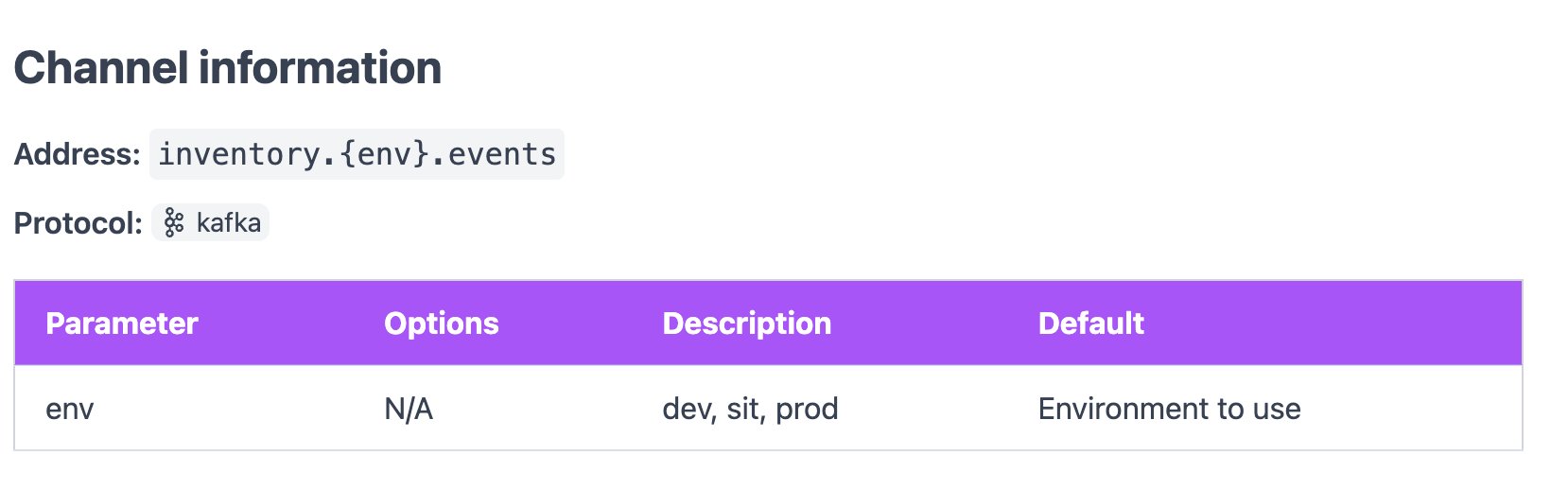
Once this information is defined, it can then be rendered on your page using the `` component.
#### Example output using the `` component[](#example-output-using-the-channelinformation--component "Direct link to example-output-using-the-channelinformation--component")
## Using protocols in channels[](#using-protocols-in-channels "Direct link to Using protocols in channels")
Your channel can have one or many protocols. To define a protocol you add the property to your channel.
```
---
id: inventory.{env}.events
# rest of channel markdown...
# You can define one or many protocols
# list of protocols: https://eventcatalog.dev/docs/development/guides/channels/introduction#protocols
protocols:
- http
- kafka
- mqtt
---
```
These protocols will be displayed on your channel page and the visualizer.
You can get [the list of protocols here](/docs/development/guides/channels/introduction.md#protocols).
**Added in** `eventcatalog@3.18.0`
## Setting a delivery guarantee[](#setting-a-delivery-guarantee "Direct link to Setting a delivery guarantee")
You can document the delivery guarantee for your channel using the `deliveryGuarantee` field. This tells consumers what to expect regarding message delivery behavior.
```
---
id: inventory.{env}.events
# How reliably messages are delivered through this channel
# Accepted values: at-most-once | at-least-once | exactly-once
deliveryGuarantee: at-least-once
---
```
When set, the visualiser shows a colored badge on the channel node. You can read more about the accepted values in the [channel API reference](/docs/api/channel-api.md#deliveryGuarantee).
## Custom icon[](#custom-icon "Direct link to Custom icon")
**Added in** `eventcatalog@3.28.1`
Set `styles.icon` in your frontmatter to display a custom icon on the channel. The icon appears in the visualiser node, sidebar navigation, page header, and search results.
/channels/inventory.{env}.events/index.mdx (example)
```
---
id: inventory.{env}.events
name: Inventory channel
version: 0.0.1
styles:
icon: /icons/streaming/kafka.svg
---
```
The value can be a path to a file in your catalog's `public/` folder (e.g. `/icons/streaming/kafka.svg`) or an absolute URL (e.g. `https://cdn.simpleicons.org/apachekafka`).