# Using plantuml
Copy as Markdown[View as Markdown](/docs/development/components/diagram-syntax/plantuml.md)
***
**Added in** `eventcatalog@2.46.0`
EventCatalog supports [plantuml](https://plantuml.com/) in all your markdown files.
This let's you create [Class Diagrams](https://plantuml.com/class-diagram), [Sequence Diagrams](https://plantuml.com/sequence-diagram), [Class Diagrams](https://plantuml.com/class-diagram), [State Diagrams](https://plantuml.com/state-diagram) and much more.
## Using plantuml in EventCatalog[](#using-plantuml-in-eventcatalog "Direct link to Using plantuml in EventCatalog")
To use plantuml you need to use the `plantuml` code block in any markdown file.
#### Example[](#example "Direct link to Example")
````
```plantuml
@startuml
!define Table(name,desc) class name as "desc" << (T,#E5E7EB) >>
!define PK(x) x
!define FK(x) x
' ===== Core Tables =====
Table(Customers, "Customers") {
PK(customerId): UUID
firstName: VARCHAR
lastName: VARCHAR
email: VARCHAR
phone: VARCHAR
dateRegistered: TIMESTAMP
}
Table(Orders, "Orders") {
PK(orderId): UUID
FK(customerId): UUID
orderDate: TIMESTAMP
status: VARCHAR
totalAmount: DECIMAL
}
Table(Products, "Products") {
PK(productId): UUID
name: VARCHAR
description: TEXT
price: DECIMAL
stockQuantity: INT
}
Table(OrderItems, "Order Items") {
PK(id): UUID
FK(orderId): UUID
FK(productId): UUID
quantity: INT
unitPrice: DECIMAL
}
Table(Payments, "Payments") {
PK(paymentId): UUID
FK(orderId): UUID
amount: DECIMAL
method: VARCHAR
status: VARCHAR
paidAt: TIMESTAMP
}
Table(InventoryEvents, "Inventory Events") {
PK(eventId): UUID
FK(productId): UUID
eventType: VARCHAR
quantityChange: INT
eventTime: TIMESTAMP
}
Table(Subscription, "Subscriptions") {
PK(subscriptionId): UUID
FK(customerId): UUID
plan: VARCHAR
status: VARCHAR
startDate: TIMESTAMP
endDate: TIMESTAMP
}
' ===== Relationships =====
Customers ||--o{ Orders : places
Orders ||--o{ OrderItems : contains
Products ||--o{ OrderItems : includes
Orders ||--o{ Payments : paid_by
Products ||--o{ InventoryEvents : logs
Customers ||--o{ Subscription : subscribes
@enduml
```_
````
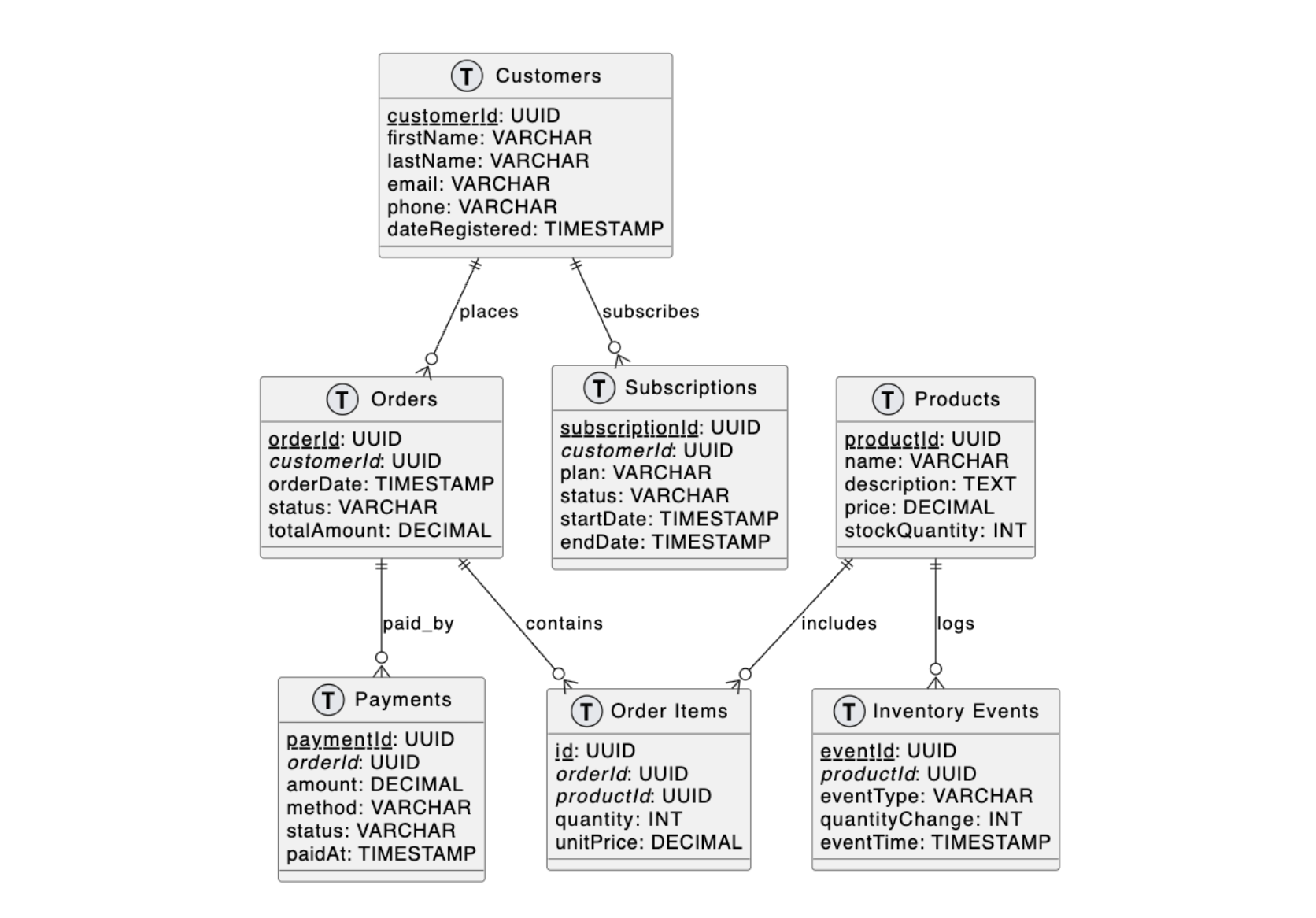
This example will output the following in the markdown file.
### How it works?[](#how-it-works "Direct link to How it works?")
The PlantUML implementation takes your content and converts it to a PNG image using .
## Interactive controls[](#interactive-controls "Direct link to Interactive controls")
**Added in** `eventcatalog@3.5.0`
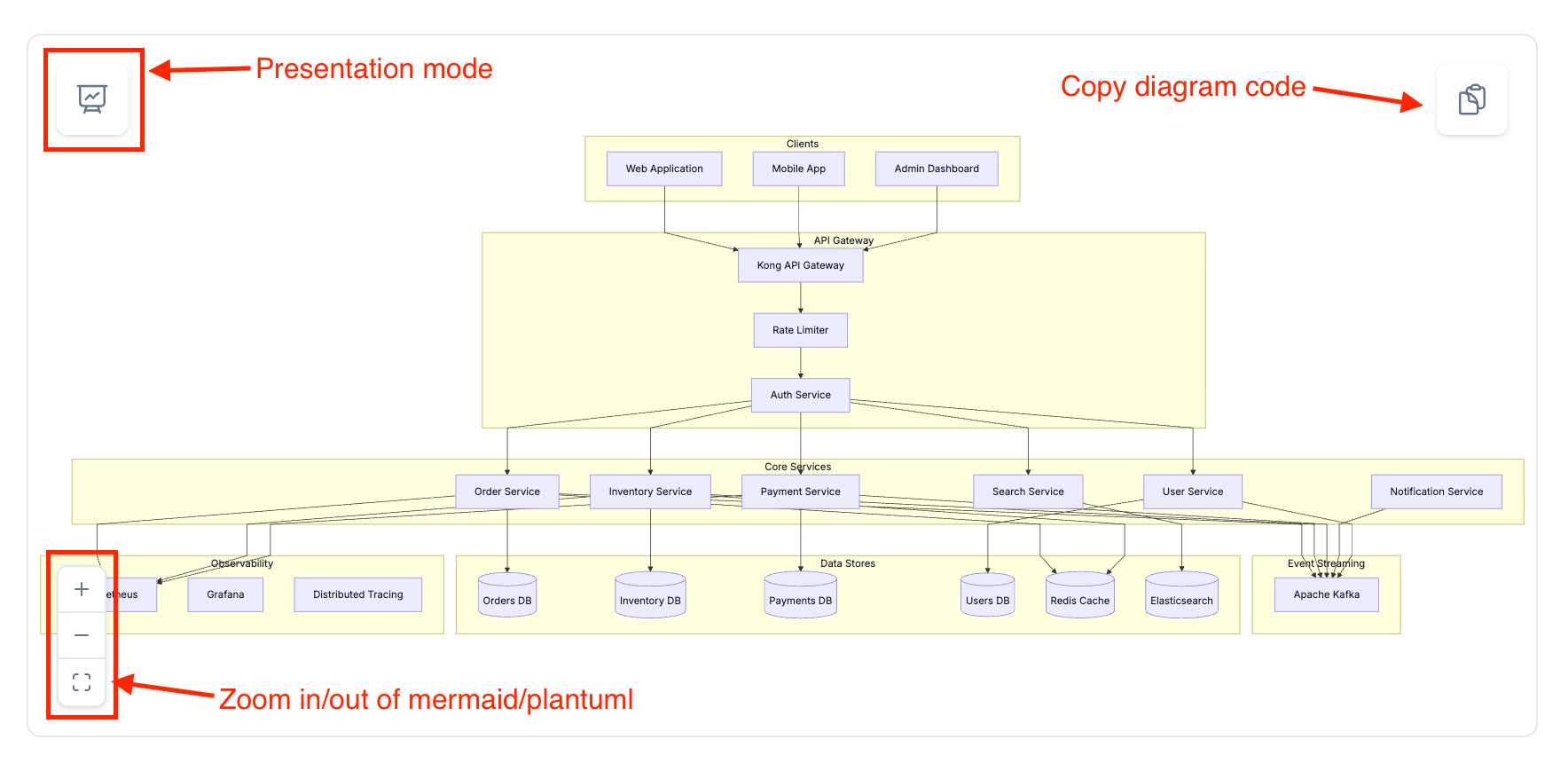
All PlantUML diagrams include interactive controls for better viewing and exploration.
### Zoom and pan[](#zoom-and-pan "Direct link to Zoom and pan")
Click and drag to pan around the diagram, or use the zoom controls in the bottom-left corner to zoom in and out. Double-click the diagram to zoom in quickly.
### Presentation mode[](#presentation-mode "Direct link to Presentation mode")
Click the presentation button in the top-left corner to view the diagram in fullscreen. In presentation mode, mouse wheel zooming is enabled for precise control.
Press `Escape` to exit presentation mode.
### Copy diagram code[](#copy-diagram-code "Direct link to Copy diagram code")
Click the copy button in the top-right corner to copy the diagram code to your clipboard.
Useful for copying diagrams into LLM prompts.
### More resources[](#more-resources "Direct link to More resources")
* [PlantUML documentation](https://plantuml.com) - Learn more about plantuml and how to use it
* [Real world examples](https://real-world-plantuml.com/) - Real world examples of plantuml in use