# Using mermaid
Copy as Markdown[View as Markdown](/docs/development/components/diagram-syntax/mermaid.md)
***
EventCatalog supports [mermaid](https://www.npmjs.com/package/mermaid) (v11.x) in all your markdown files.
This let's you create [Class Diagrams](https://mermaid.js.org/syntax/classDiagram.html), [Sequence Diagrams](https://mermaid.js.org/syntax/sequenceDiagram.html), [Entity Relationship Diagrams](https://mermaid.js.org/syntax/entityRelationshipDiagram.html), [Architecture Diagrams](https://mermaid.js.org/syntax/architecture.html) and much more.
## Using mermaid in EventCatalog[](#using-mermaid-in-eventcatalog "Direct link to Using mermaid in EventCatalog")
There are two ways to use mermaid in EventCatalog.
1. [Using the `mermaid` code block in any markdown file.](#using-the-mermaid-code-block-in-any-markdown-file)
2. [Using Mermaid files `.mmd` and `.mermaid` files and loading them into your EventCatalog page.](#loading-mermaid-files-into-your-eventcatalog-page)
* *Added in EventCatalog 2.56.4*
Diagrams not rendering?
If you have large diagrams that fail to render, increase the `maxTextSize` configuration value. [Learn more about maxTextSize configuration](/docs/api/config.md#mermaid).
### Using the `mermaid` code block in any markdown file.[](#using-the-mermaid-code-block-in-any-markdown-file "Direct link to using-the-mermaid-code-block-in-any-markdown-file")
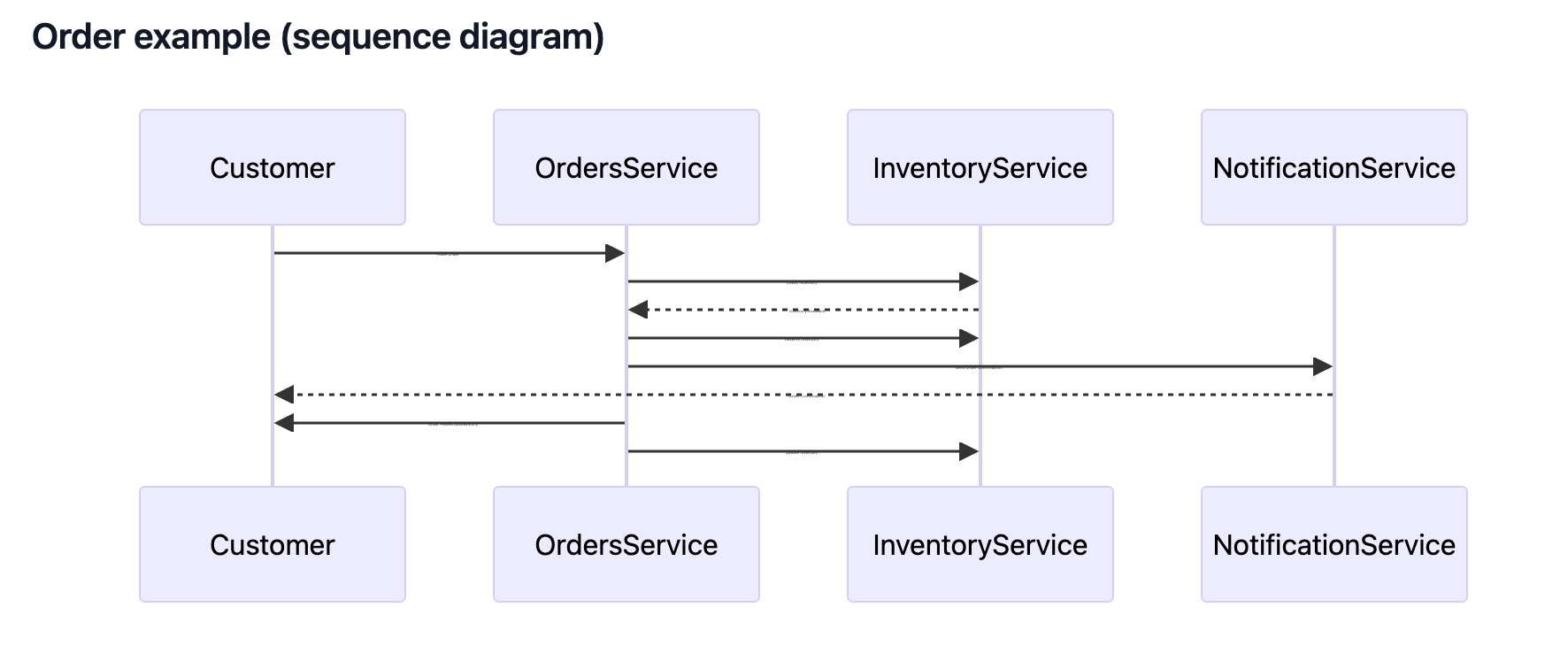
To use mermaid you need to use the `mermaid` code block in any markdown file.
#### Example[](#example "Direct link to Example")
````
```mermaid
sequenceDiagram
participant Customer
participant OrdersService
participant InventoryService
participant NotificationService
Customer->>OrdersService: Place Order
OrdersService->>InventoryService: Check Inventory
InventoryService-->>OrdersService: Inventory Available
OrdersService->>InventoryService: Reserve Inventory
OrdersService->>NotificationService: Send Order Confirmation
NotificationService-->>Customer: Order Confirmation
OrdersService->>Customer: Order Placed Successfully
OrdersService->>InventoryService: Update Inventory
```_
````
This example will output the following in the markdown file.
### Loading Mermaid files into your EventCatalog page.[](#loading-mermaid-files-into-your-eventcatalog-page "Direct link to Loading Mermaid files into your EventCatalog page.")
**Added in** `eventcatalog@2.56.4`
You can load Mermaid files using the [``](/docs/development/components/components/mermaid-file-loader.md) component, if you prefer to use a file instead of a code block.
Add your .mmd or .mermaid file to your folder (e.g `/events/MyEvent/mermaid.mmd`)
```
---
#event frontmatter
---
```
This example will load a mermaid file (.mmd or .mermaid) into your EventCatalog page.
**The file must be in the same directory as the markdown file.**
***
## Architecture diagrams with mermaid[](#architecture-diagrams-with-mermaid "Direct link to Architecture diagrams with mermaid")
**Added in** `eventcatalog@2.18.0`
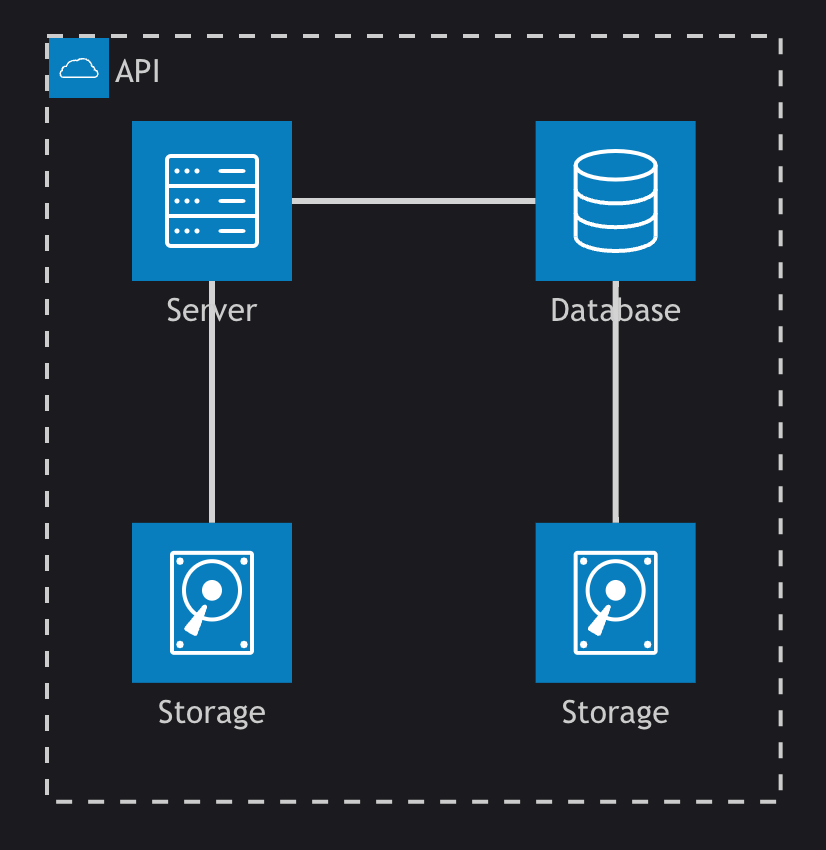
Mermaid 11 introduced the [ability to create architecture diagrams](https://mermaid.js.org/syntax/architecture.html).
You can use these diagrams to document your architecture.
#### Example[](#example-1 "Direct link to Example")
````
```mermaid
architecture-beta
group api(cloud)[API]
service db(database)[Database] in api
service disk1(disk)[Storage] in api
service disk2(disk)[Storage] in api
service server(server)[Server] in api
db:L -- R:server
disk1:T -- B:server
disk2:T -- B:db
```_
````
This example will output the following in the markdown file.
## Architecture diagrams with icons[](#architecture-diagrams-with-icons "Direct link to Architecture diagrams with icons")
**Added in** `eventcatalog@2.18.0`
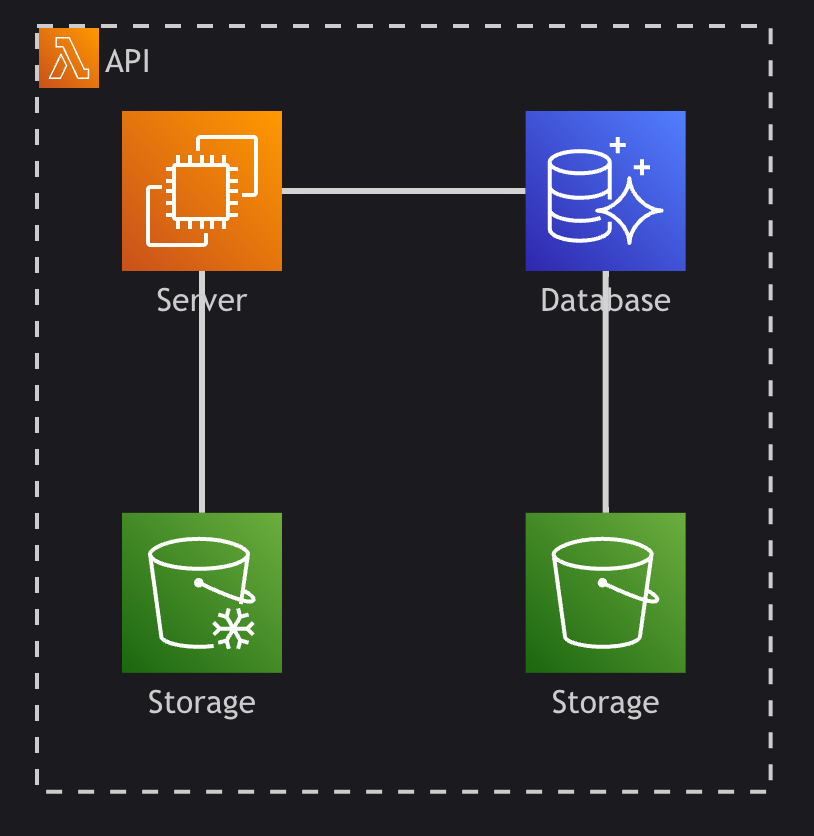
EventCatalog supports over **200,000 icons** from [icones.js.org](https://icones.js.org/collection/logos).
To add icon support you need to add the icon pack into your `eventcatalog.config.js` file.
```
// eventcatalog.config.js
mermaid: {
iconPacks: ['logos'] // will load https://icones.js.org/collection/logos into eventcatalog
}
```
In this example above we import the icon pack [logos](https://icones.js.org/collection/logos) from [icones.js.org](https://icones.js.org/collection/logos), but you can import any icon pack you like from [icones.js.org](https://icones.js.org/collection/logos).
To use the icons in your mermaid diagrams you need to prefix the icon name with pack name.
In this example we are using the `logos` pack, so we prefix the icon name with `logos:`.
````
```mermaid
architecture-beta
group api(logos:aws-lambda)[API]
service db(logos:aws-aurora)[Database] in api
service disk1(logos:aws-glacier)[Storage] in api
service disk2(logos:aws-s3)[Storage] in api
service server(logos:aws-ec2)[Server] in api
db:L -- R:server
disk1:T -- B:server
disk2:T -- B:db
```_
````
EventCatalog will then import the icons from the icon pack and render them in the diagram.
## Mermaid with ELK (Eclipse Layout Kernel) layout algorithm[](#mermaid-with-elk-eclipse-layout-kernel-layout-algorithm "Direct link to Mermaid with ELK (Eclipse Layout Kernel) layout algorithm")
**Added in** `eventcatalog@2.61.2`
EventCatalog supports the [ELK (Eclipse Layout Kernel)](https://eclipse.dev/elk/) layout algorithm for mermaid diagrams.
To add support for the ELK layout algorithm you need to add the following to your `eventcatalog.config.js` file.
```
// eventcatalog.config.js
mermaid: {
// default value is false
enableSupportForElkLayout: true
}
```
After you set the value, mermaid will be configured to use the ELK layout algorithm.
## Interactive controls[](#interactive-controls "Direct link to Interactive controls")
**Added in** `eventcatalog@3.4.1`
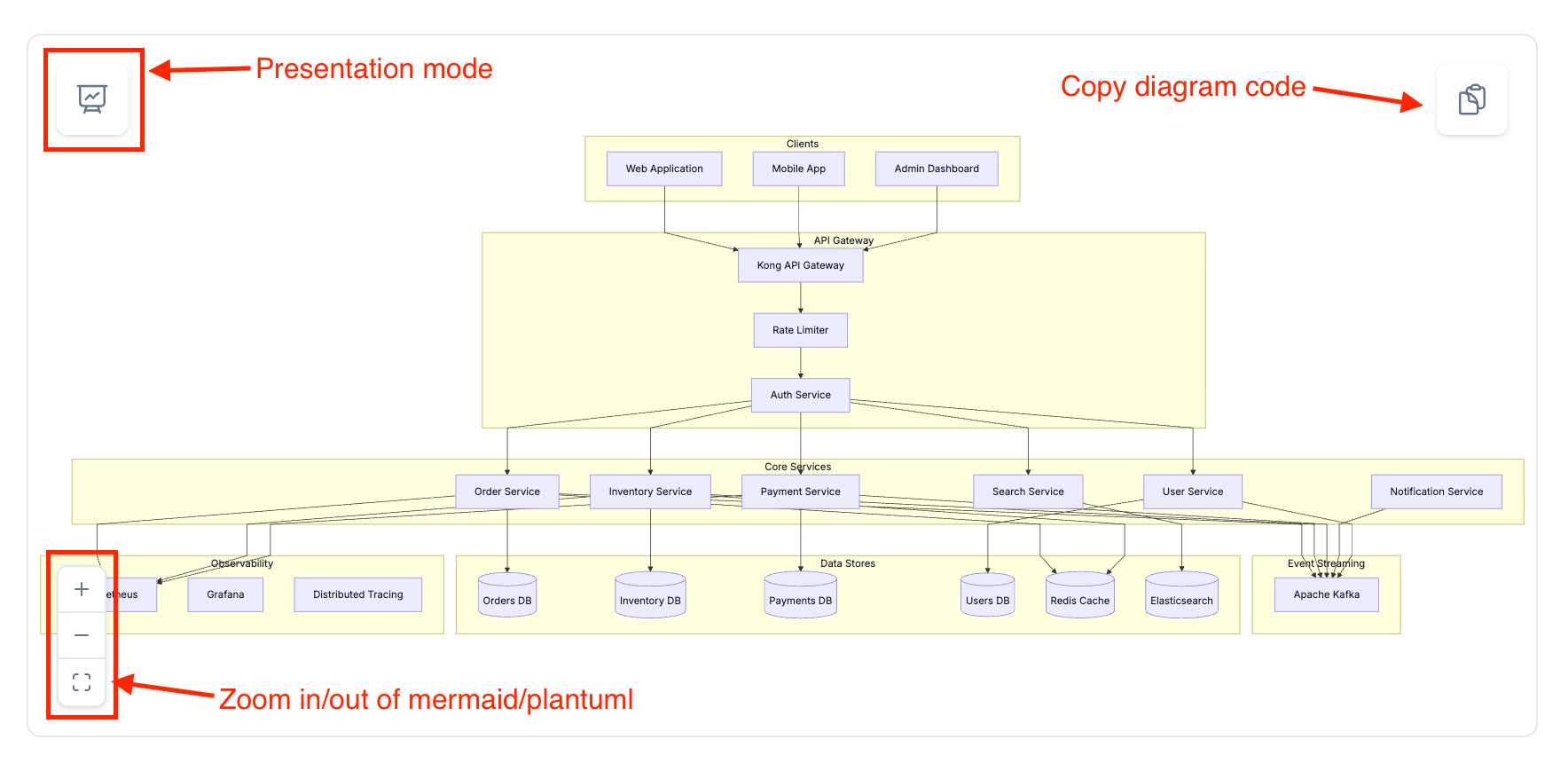
All Mermaid diagrams include interactive controls for better viewing and exploration.
### Zoom and pan[](#zoom-and-pan "Direct link to Zoom and pan")
Click and drag to pan around the diagram, or use the zoom controls in the bottom-left corner to zoom in and out. Double-click the diagram to zoom in quickly.
### Presentation mode[](#presentation-mode "Direct link to Presentation mode")
Click the presentation button in the top-left corner to view the diagram in fullscreen. In presentation mode, mouse wheel zooming is enabled for precise control.
Press `Escape` to exit presentation mode.
### Copy diagram code[](#copy-diagram-code "Direct link to Copy diagram code")
Click the copy button in the top-right corner to copy the diagram code to your clipboard.
Useful for copying diagrams into LLM prompts.
## Export NodeGraphs as Mermaid[](#export-nodegraphs-as-mermaid "Direct link to Export NodeGraphs as Mermaid")
**Added in** `eventcatalog@3.9.0`
EventCatalog can export any NodeGraph visualization as Mermaid diagram code.
Click the view switcher dropdown in any NodeGraph and select "Copy as Mermaid" to copy the diagram to your clipboard. The exported diagram preserves all nodes, edges, labels, and styling.
You can then paste the Mermaid code into:
* LLM prompts for architecture discussions
* Other documentation tools
* [mermaid.live](https://mermaid.live) for further editing
* Mermaid code blocks in EventCatalog pages
[Read more about NodeGraph controls](/docs/development/components/components/nodegraph.md#interactive-controls)
### More resources[](#more-resources "Direct link to More resources")
* [Mermaid documentation](https://mermaid.js.org) - Learn more about mermaid and how to use it
* [Icon packs](https://icones.js.org/) - Explore over 200,000 icons from iconify